HighLevel Contact Deduplication: Choose Your Matching Rules
HighLevel released a new feature that gives you control over how contact deduplication works. No more surprises when forms create unexpected duplicates — or merge contacts you wanted separate.
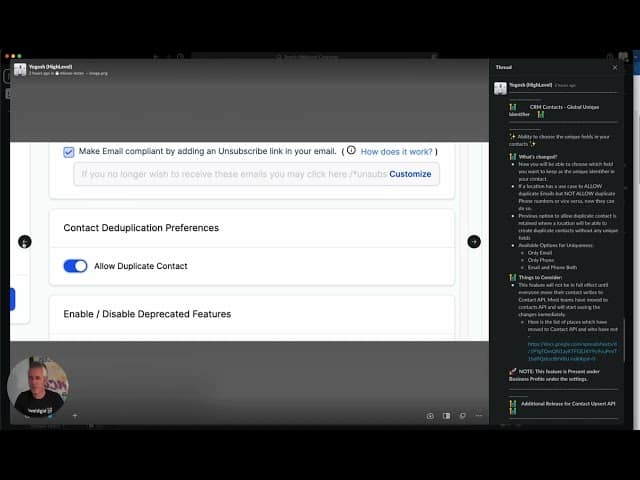
Click on the image above to watch the full video.
The Problem This Solves
Imagine this scenario:
- Someone submits a form with
john@email.comand555-1234 - You already have a contact with
john@email.comand a different phone - You also have a contact with
555-1234and a different email
Which contact should the new submission merge into? Or should it create a new one?
Before this feature, HighLevel made that decision for you. Now you decide.
Our Toolbox. Every platform, plugin, and service we use and recommend, in one place. See the list →
How It Works
Unique Field Settings
You can now configure which fields are considered "unique identifiers" and in what order:
- Email first — Match by email, then phone
- Phone first — Match by phone, then email
- Either — Match if either field matches any contact
- Both required — Only match if both fields match the same contact
When to Allow Duplicates
Sometimes you want duplicates:
- Multiple locations — Same person, different contexts
- B2B scenarios — Same person at different companies
- Testing — Creating test contacts without merging
Now you can control this per form or globally.
Where to Configure
- Go to Settings in your HighLevel sub-account
- Find Contact Settings or Deduplication
- Set your preferred matching rules
- Save
Best Practices
- For most B2C businesses — Email-first matching works well
- For service businesses — Phone-first may be better (customers call more than email)
- For agencies — Consider per-sub-account settings for different client needs
See Also
- HighLevel — The platform
See Also
This article blends original content, AI-assisted drafting, and human oversight. How I write.
Stay Updated
Get notified when new content is published.
No spam. Unsubscribe anytime.