HighLevel Payment Received Trigger: Automate After Payments
HighLevel's Payment Received trigger fires a workflow whenever a payment is processed. This lets you automate everything that should happen after someone pays.
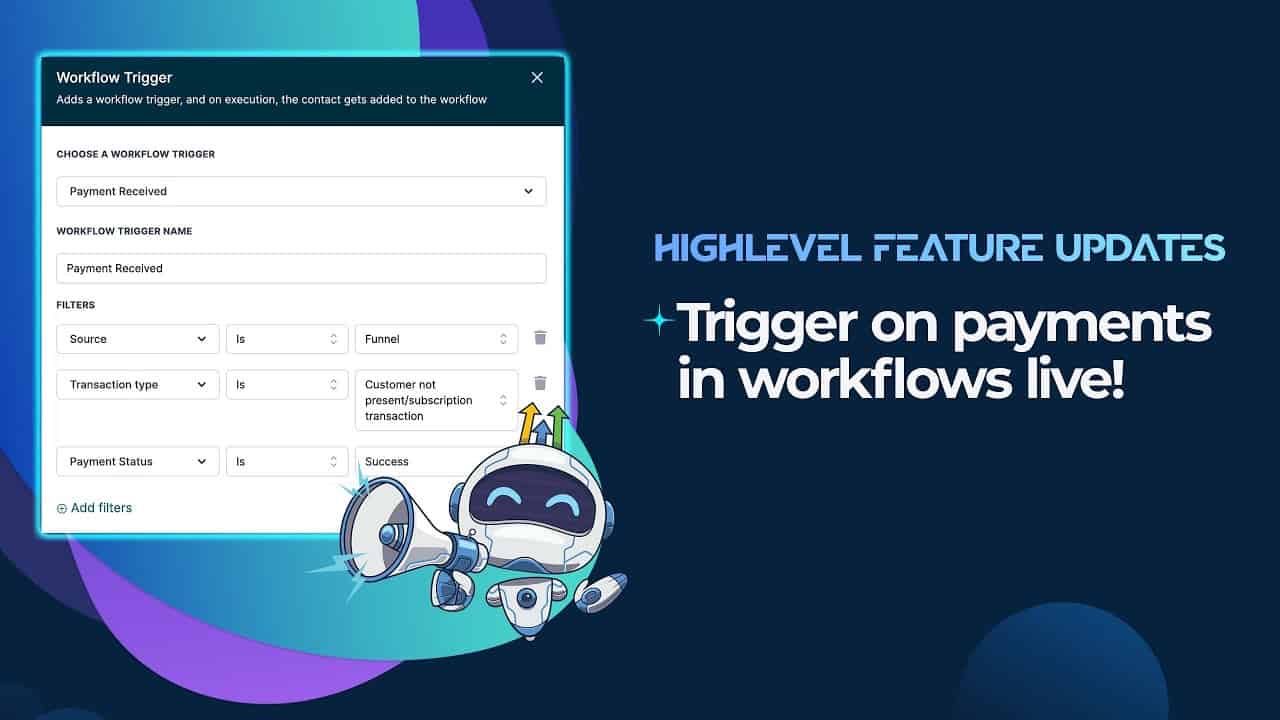
Click on the image above to watch the full video.
What Payments Trigger It
The trigger captures all payment types:
- One-time payments — Single purchases
- Subscription charges — Recurring payments
- Invoice payments — Invoice paid
- Order payments — E-commerce orders
How to Set It Up
- Create a new workflow
- Select Payment Received as the trigger
- Configure filters (optional)
- Add your actions
- Save and publish
Available Filters
Narrow down which payments trigger the workflow:
- Payment type (one-time, subscription, invoice)
- Payment status (success, failed)
- Product or offer
- Amount range
Common Automations
Payment Confirmation
Send an immediate email or SMS confirming the payment was received.
Our Toolbox. Every platform, plugin, and service we use and recommend, in one place. See the list →
Subscription Management
- Payment successful → Keep subscription active
- Payment failed → Send retry notification, pause access
Onboarding Sequences
Trigger a welcome sequence when someone makes their first purchase.
Internal Notifications
Alert your team when a high-value payment comes in. For payments outside HighLevel's native processor (like PayPal or Venmo), trigger links let you wrap external payment links so you get notified when someone clicks to pay.
Payment Data Available
Use these custom values in your workflow:
- Payment amount
- Payment type
- Product name
- Customer email
- Transaction ID
See Also
See Also
We are an independent affiliate of HighLevel and may earn a commission if you sign up through links on this page. We are not employees or representatives of HighLevel.
We are an independent affiliate of Noomerik and may earn a commission if you sign up through links on this page. We are not employees or representatives of Noomerik.
This article blends original content, AI-assisted drafting, and human oversight. How I write.
Stay Updated
Get notified when new content is published.
No spam. Unsubscribe anytime.