AI
Mac Screenshot Shortcuts: File vs Clipboard
April 15, 2026
A quick reference for the two Mac screenshot shortcuts that cover most of what you need.
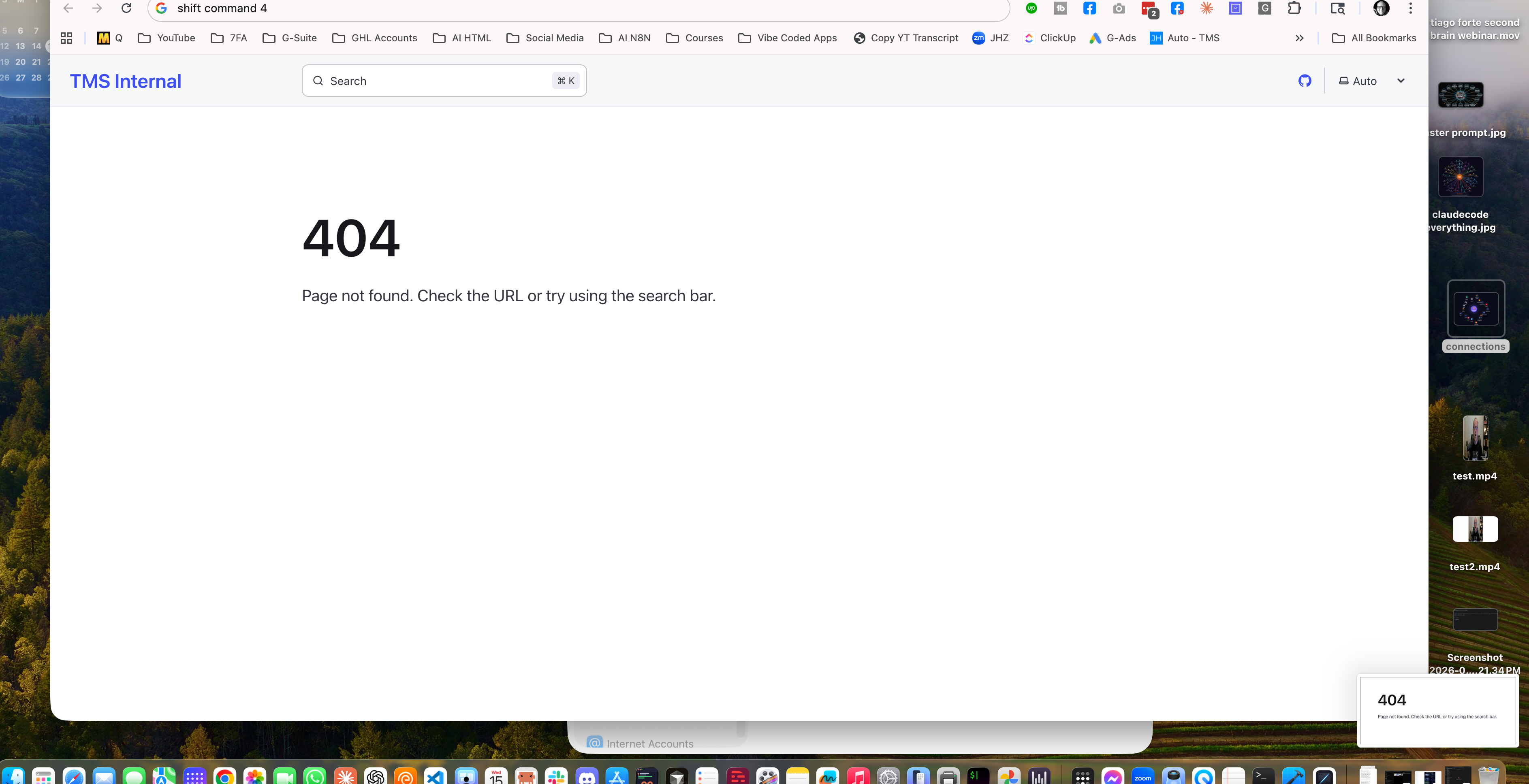
Command + Shift + 4
Drag a selection. A small thumbnail pops up in the bottom-right corner for a second, then the screenshot saves as a file on your Desktop.
Use this when you want a file to keep, attach, or edit.
Command + Control + Shift + 4
Drag a selection. No thumbnail, no file. The screenshot goes straight to your clipboard. Hit Command + V anywhere to paste it.
Use this when you just want to paste the screenshot somewhere right away.
This article blends original content, AI-assisted drafting, and human oversight. How I write.
Stay Updated
Get notified when new content is published.
No spam. Unsubscribe anytime.