How to White-Label the HighLevel Desktop App
White-labeling in HighLevel lets you replace the default login URLs with your own branded domain. Instead of app.msgsndr.com, your clients see app.youragency.com.
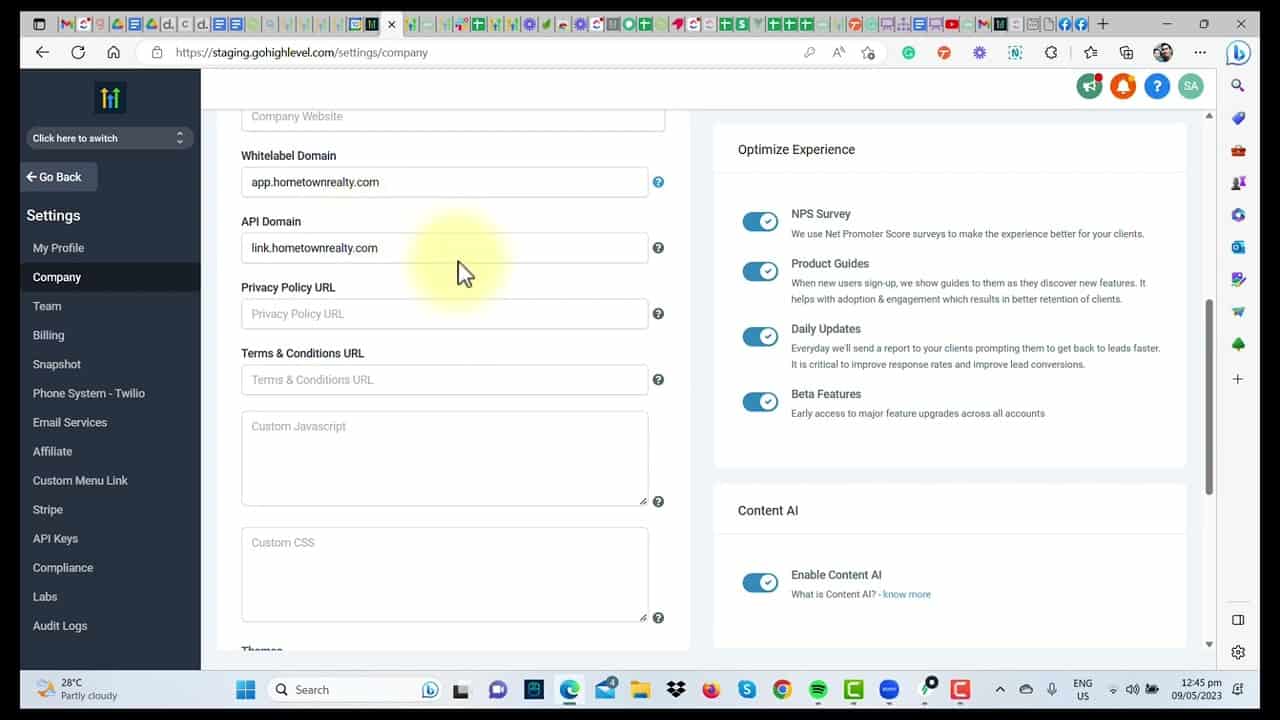
Click on the image above to watch the full video.
What Gets White-Labeled
- Login URL — Where users log in to access the platform
- API Domain — Shows your domain instead of gohighlevel.com
- Email links — Links in system emails use your domain
How to Set Up White-Label Domain
Step 1: Choose Your Subdomain
Pick a subdomain for your login portal, such as:
app.youragency.comportal.youragency.comcrm.youragency.com
Step 2: Add CNAME Records
In your DNS provider, add these CNAME records. Using Cloudflare? The HighLevel wizard can add these automatically.
Our Toolbox. Every platform, plugin, and service we use and recommend, in one place. See the list →
For the app login:
- Type: CNAME
- Host:
app(or your chosen subdomain) - Points to:
app.msgsndr.com
For link tracking:
- Type: CNAME
- Host:
link - Points to:
link.messagesender.com
Step 3: Configure in HighLevel
- Go to Agency Settings → White Label
- Enter your custom domain
- Save and wait for verification
Step 4: Test the Login
Visit your new URL (e.g., app.youragency.com) and verify the login page appears.
Benefits of White-Labeling
- Professional appearance — Your brand, not HighLevel's
- Client confidence — Looks like your own software
- Consistent branding — Matches your website and marketing
- Reseller ready — Essential for SaaS mode
See Also
- HighLevel — The platform
This article blends original content, AI-assisted drafting, and human oversight. How I write.
Stay Updated
Get notified when new content is published.
No spam. Unsubscribe anytime.