How I Got Delta WiFi Working at 30,000 Feet
The Captive Portal Problem
You know the drill. You connect to the airport WiFi, or the hotel WiFi, or the in-flight WiFi. You wait for that little login window to magically appear. It doesn't. So you open a browser. You get a DNS error. You try a different browser. Still nothing. You forget the network and rejoin it. Still nothing. You stare at the screen wondering if the internet has simply decided to take the day off.
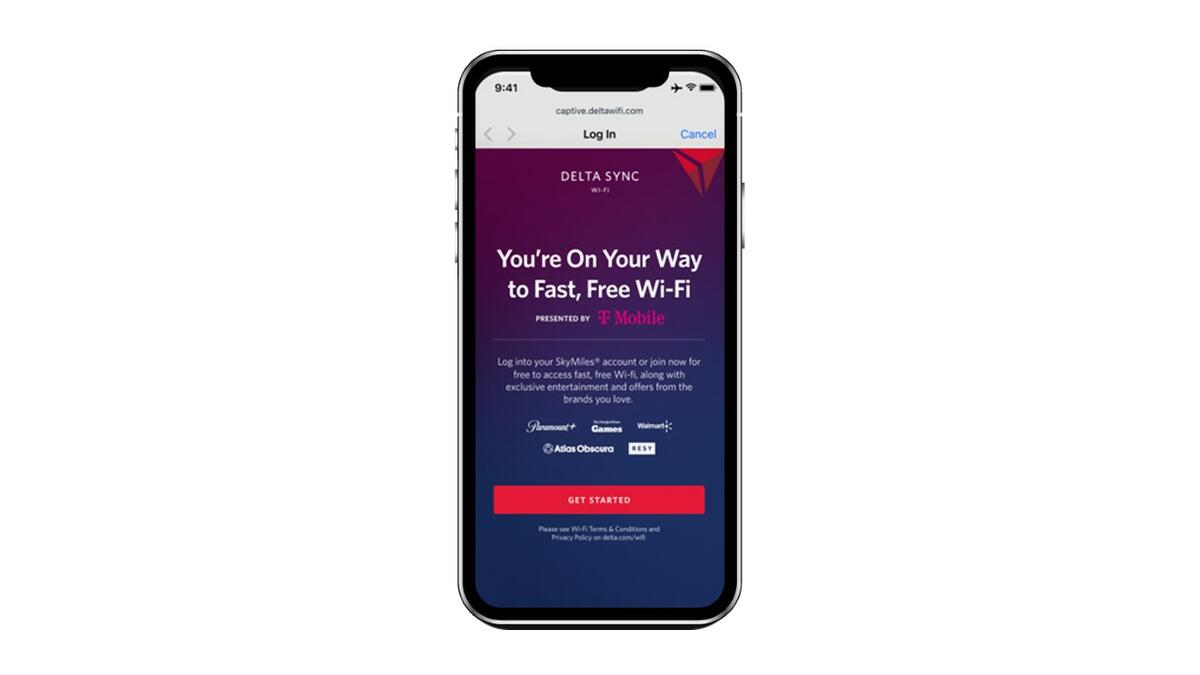
Captive portals are one of the most consistently broken experiences in all of consumer technology — and yet somehow they're everywhere. Every hotel, every airport, every airplane acts like this is a solved problem. It is not a solved problem.
This is the story of how I finally got Delta's in-flight WiFi working at 30,000 feet — after trying just about everything. Here's what happened, what I learned, and the one fix that actually did it.
Need help with this? Create a ticket today
The Problem: DNS_PROBE_FINISHED_NXDOMAIN
I connected to DeltaWiFi.com in Chrome and was immediately greeted with a "This site can't be reached" error. The error code read DNS_PROBE_FINISHED_NXDOMAIN — which means the domain couldn't be resolved at all. The network showed as connected in my Mac's menu bar, but something was clearly wrong.
Clue Number One: The Warning Triangle
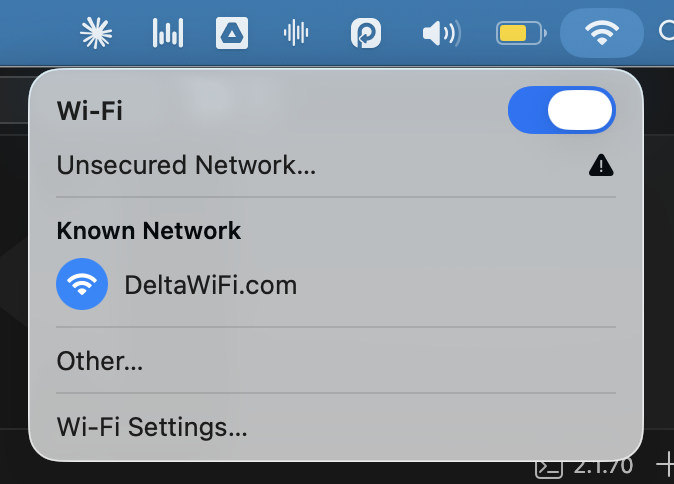
When I opened my WiFi menu, I noticed a small warning triangle next to DeltaWiFi.com. That triangle is a super useful diagnostic signal on macOS — it means your device is connected to the network, but has no verified internet access. In other words, the captive portal hasn't been authenticated yet.
This confirmed the issue wasn't the network itself — it was the portal authentication flow failing to trigger.
What I Tried (And What Didn't Work)
I'll be honest — I'm not 100 percent sure which step finally unstuck it. It's possible the fix only worked because of something I did earlier. So if you're troubleshooting this yourself, I'd recommend working through all of these in order rather than skipping straight to the end.
Step 1: Try Both Chrome and Safari
- Open Chrome, type deltawifi.com in the address bar, and hit Enter.
- If that fails, open Safari and try the same URL.
- In my case, both gave errors — Chrome said DNS_PROBE_FINISHED_NXDOMAIN, Safari said it couldn't find the server.
Step 2: Try Triggering the Captive Portal Manually
- In Safari, type http://captive.apple.com in the address bar (make sure it's http, not https) and hit Enter.
- If that doesn't work, try http://1.1.1.1 — this bypasses DNS entirely and goes straight to an IP address. Still no luck for me, but worth trying.
Step 3: Forget the Network and Rejoin
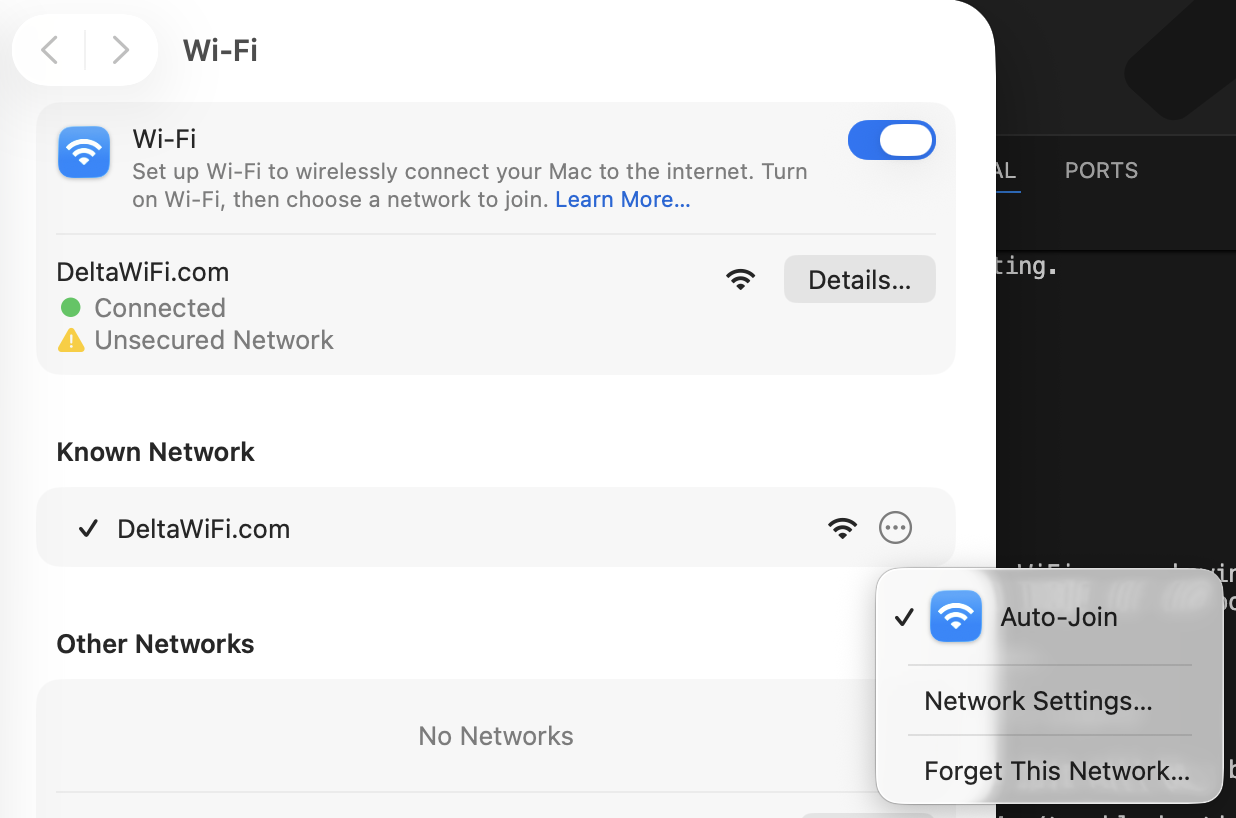
- Click the WiFi icon in the menu bar, then open Wi-Fi Settings.
- Click the info icon next to DeltaWiFi.com, then click Forget This Network and confirm.
- Click the WiFi icon again and rejoin DeltaWiFi.com from the network list.
- I did this multiple times hoping a fresh connection would trigger the portal popup. It didn't — but it may have helped reset something in the background.
Step 4: Flush Your DNS Cache
- Open Terminal (press Cmd + Space, type Terminal, hit Enter).
- Paste this command and hit Enter:
sudo dscacheutil -flushcache; sudo killall -HUP mDNSResponder
- Enter your Mac password when prompted. No output means it worked. Then try loading the portal again in Safari.
Step 5: Clear Your DNS Entries (This Is the One That Worked)
Our Toolbox. Every platform, plugin, and service we use and recommend, in one place. See the list →
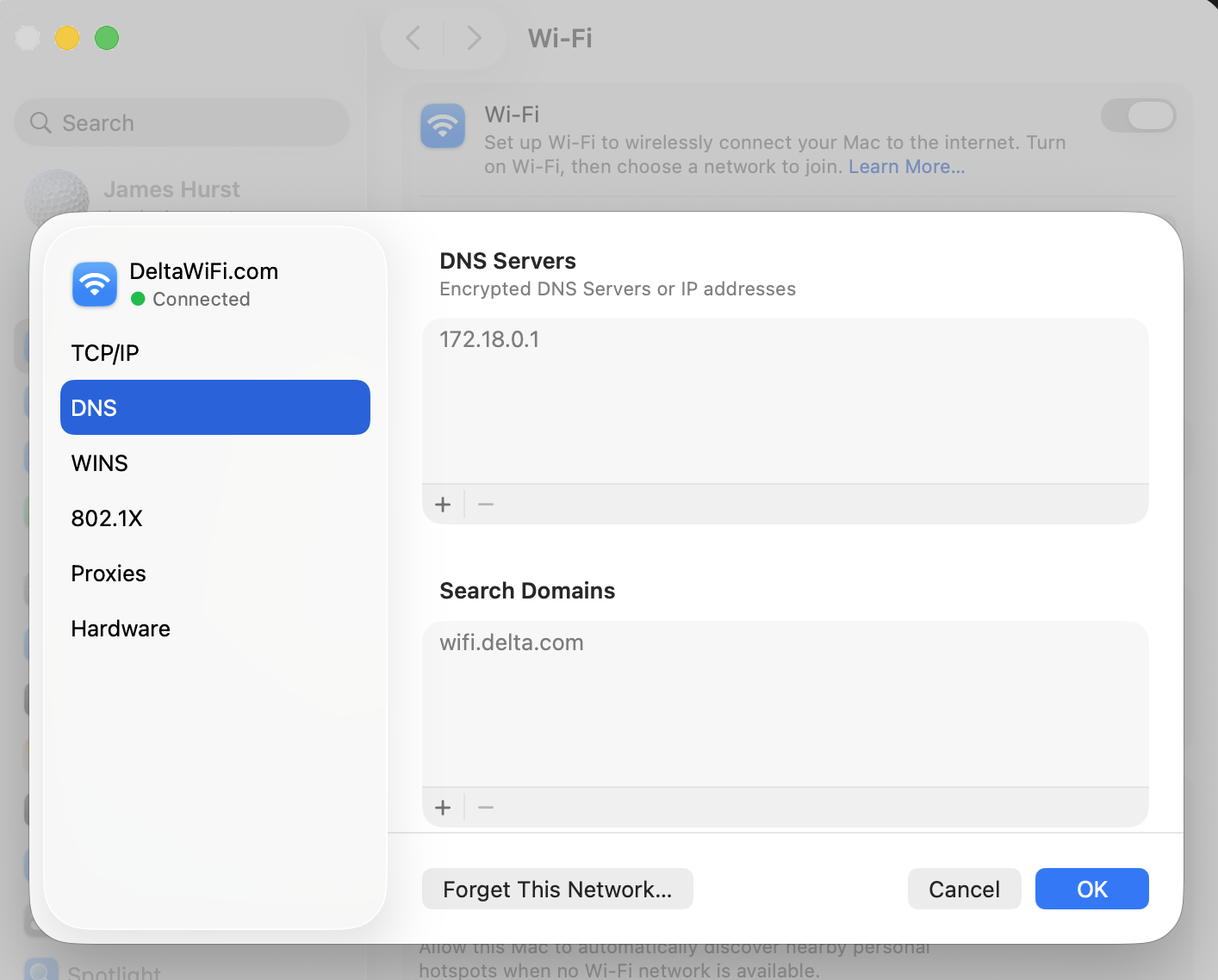
- Click the WiFi icon, then open Wi-Fi Settings.
- Click the info icon next to DeltaWiFi.com to open its details.
- Click the DNS tab.
- Select each DNS entry listed and click the minus button to remove it. Remove all of them and leave the field completely empty.
- Click OK.
- macOS will automatically pull the correct DNS address from the network's DHCP server — you don't need to type anything. Then try loading the portal in Safari again.
Wait — Is captive.apple.com Special?
Good question — and one I found myself asking mid-flight. The short answer: no, it's not magic.
Here's how captive portals actually work. When your device connects to one of these networks, the router intercepts all outbound HTTP traffic and redirects it to the portal login page — regardless of what address you typed. So whether you navigate to ksl.com, google.com, or any plain HTTP address, the network hijacks that request and serves you the portal page instead.
So why does everyone recommend captive.apple.com? Because macOS pings that URL automatically in the background whenever you join a new network, to check whether a captive portal exists. If it gets a redirect instead of Apple's expected response, macOS knows to pop up the portal dialog automatically. It's not that the URL does anything special — it's just the address macOS already uses internally for its own detection.
For simply opening the portal page in your browser, any plain HTTP (not HTTPS) address does the job. The key word being HTTP — HTTPS traffic is encrypted end-to-end, so the router can't intercept and redirect it the same way. That's also why typing https://deltawifi.com fails while http://deltawifi.com works.
The Fix: Let macOS Pull the Right DNS Automatically
After everything else failed, I went into Wi-Fi Settings, opened the DNS tab for DeltaWiFi.com, and removed all the DNS entries — leaving the field completely empty. I never typed 172.18.0.1 or navigated to it. macOS just filled it in automatically once my manual entries were cleared. That's Delta's local gateway IP, assigned directly by the network's DHCP server. The portal loaded immediately.
The network's DHCP server had been trying to assign the correct DNS gateway all along, but a stale or conflicting manual DNS entry was blocking it. Once those were cleared, macOS received the correct address automatically.
Key Takeaways for Troubleshooting Captive Portals
- Check for the warning triangle on your WiFi icon — it tells you authentication hasn't happened yet.
- Navigate to http://captive.apple.com to try triggering the portal dialog — any plain HTTP address will work, including your favorite local news site.
- Clear your DNS entries in Wi-Fi Settings for that network and let DHCP assign them automatically. This is often the fix when nothing else works.
- Wait for cruising altitude if you just took off — Delta's WiFi often isn't active until around 10,000 feet.
Final Thought
Most in-flight WiFi problems aren't about the network being down — they're about your device not completing the portal handshake correctly. The DNS layer is almost always where the breakdown happens, and clearing manual overrides to let DHCP do its job is the fastest path to a fix.
Now if you'll excuse me, I have emails to catch up on.
Need help with tech issues like this? Create a ticket today
Some links in this article are affiliate links. If you purchase through them, we may earn a commission at no extra cost to you. This helps support our content.
This article blends original content, AI-assisted drafting, and human oversight. How I write.
Stay Updated
Get notified when new content is published.
No spam. Unsubscribe anytime.