Why My Printer Made Me Press OK on Every Print Job
"Claude, Print That Off"
I like to push the boundaries of what AI can do for me day to day. Today I wanted to see if I could just tell Claude Code, "print that off," and have paper come out of the printer.
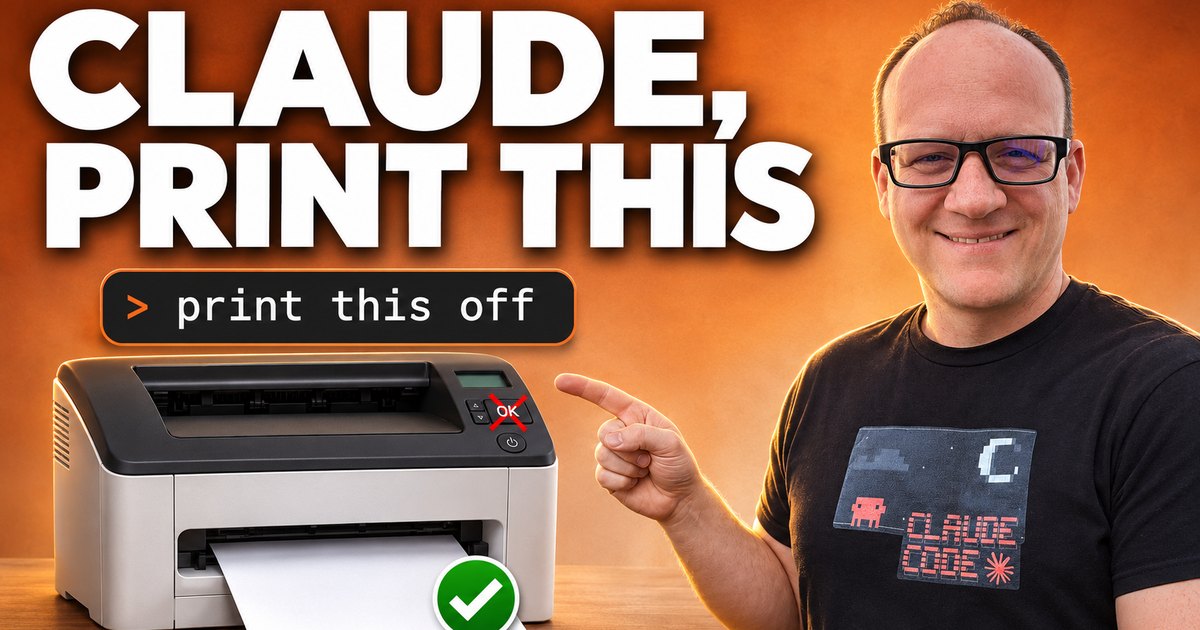
Almost. Claude sent the job, I could hear the printer start, and then it stopped and waited. I had to walk over and press OK on the printer, which happened a lot with this printer, an HP LaserJet Professional M1212nf MFP. I had stopped noticing the extra trip. With Claude doing the printing, the trip stood out.
So we troubleshot it together. It turned out to be one setting in the Mac's driver file, and the fix took about two minutes. Now I can say, "Claude, print that off," and it just prints.
Need help with this? Create a ticket today
What the Print Queue Said
The first clue was a status that did not match what I could see. The job said it was printing page 4 of 4 at 100 percent, but nothing came out. Asking the print system directly for the job's state gave the real answer:
job-state-reasons: job-printing
job-printer-state-reasons: media-needed-error
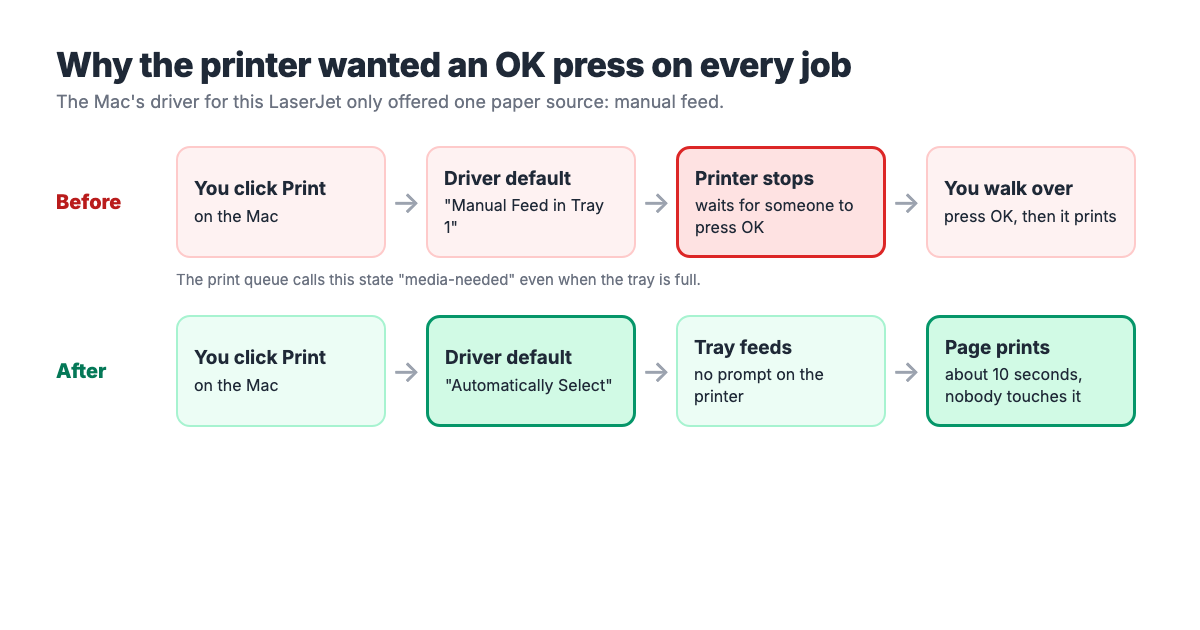
"Media needed" sounds like the tray is empty. The tray was full. The printer was waiting for paper in a place I was not putting it: the manual feed.
The Cause: One Choice in the Driver
macOS keeps a small text file for each printer called a PPD. Think of it as the menu of options the Mac is allowed to send to that printer: paper sizes, two-sided printing, and which paper source to pull from.
Our Toolbox. Every platform, plugin, and service we use and recommend, in one place. See the list →
On my Mac, the paper source section of that menu had exactly one item:
lpoptions -p HP_LaserJet_Professional_M1212nf_MFP -l
InputSlot/Media Source: *Manual
With only one option, every job went out tagged "manual feed," and this printer handles manual feed by stopping and waiting for someone to press OK.
The Fix: Add Automatic and Make It the Default
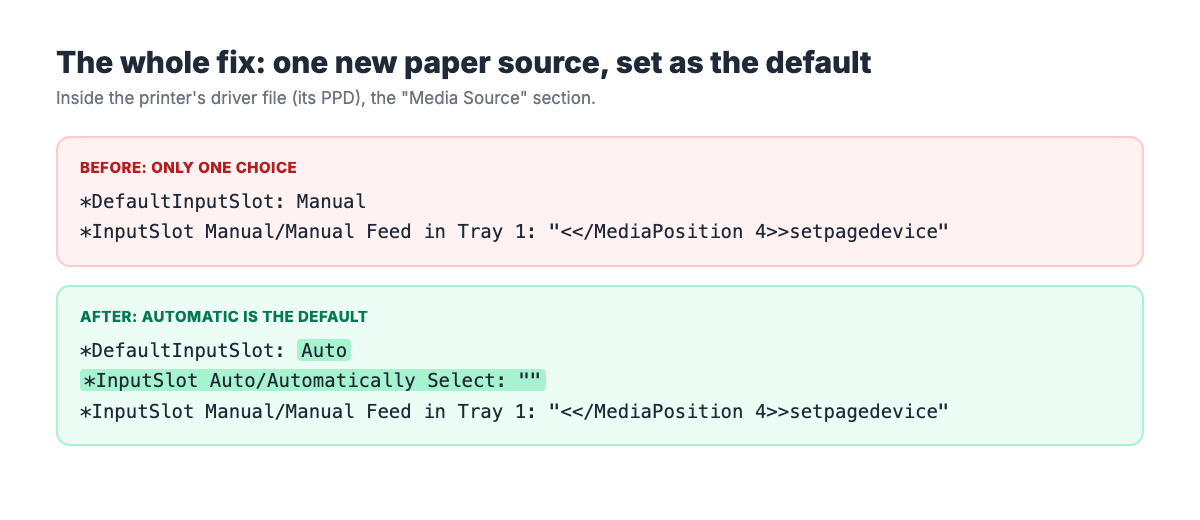
The change is two lines in the printer's PPD file, which lives in /etc/cups/ppd/ on a Mac. These are the steps I followed:
- Back up the driver file. Copy it with sudo and add a date to the name, so you can always put it back.
- Add an automatic paper source. Insert a line that reads InputSlot Auto/Automatically Select with an empty value, right above the manual feed line.
- Make it the default. Change DefaultInputSlot: Manual to DefaultInputSlot: Auto.
- Check the file. Run cupstestppd on it. Mine came back PASS.
- Restart the print system so it reloads the driver: sudo launchctl kickstart -k system/org.cups.cupsd.
- Print one test page. One sheet is enough to prove it.
My test page printed in about 10 seconds with nobody touching the printer. The queue went straight from printing to completed with no "media needed" stop.
What This Took
| Step | First time | Now that I know |
|---|---|---|
| Figure out why the job was stuck | A few minutes of reading the queue status | Under a minute |
| Edit the driver and restart printing | About two minutes | About two minutes |
| Test print | One page | One page |
The slow part was the diagnosis. The job's own progress line said it was done, so the useful status was one level deeper.
Things to Know Before You Try It
- A driver update can undo it. If HP or macOS reinstalls the driver, the old file comes back with manual feed as the only option. Keep your backup and check the paper source again after updates.
- Apps can still ask for manual feed. If you pick Manual Feed in an app's print dialog, the printer will wait for OK, which is what you asked for. The fix only changes the default.
- This needs admin rights. The driver file is a system file, so every edit runs with sudo.
- I am not a printer expert. This fixed my HP LaserJet on my Mac. Other models may name the option differently, but the menu-of-options idea is the same.
Need help with tech issues like this? Create a ticket today
See Also
Some links in this article are affiliate links. If you purchase through them, we may earn a commission at no extra cost to you. This helps support our content.
This article blends original content, AI-assisted drafting, and human oversight. How I write.
Stay Updated
Get notified when new content is published.
No spam. Unsubscribe anytime.