Mac Screenshot Shortcuts: File vs Clipboard
Here is the Mac screenshot trick that took me way too long to learn.

Most people know Command-Shift-4. You hit the combo, drag a box around what you want, and you get a screenshot file sitting on your Desktop. Done. That works great when you actually want a file. Something to keep, attach to an email, drop into a support ticket, or edit in Preview.
But most of the time, I do not want a file. I am in the middle of a conversation. I want to paste a screenshot into Slack, into a message, into a chat with Claude, into a doc, and I want to do it right now. Hunting for the file on my Desktop, dragging it into the app, then going back to delete it later so my Desktop does not turn into a landfill, that is all friction I do not need.
That is where the second shortcut comes in. Same drag, one extra key.
The Two Shortcuts
| Shortcut | What Happens |
|---|---|
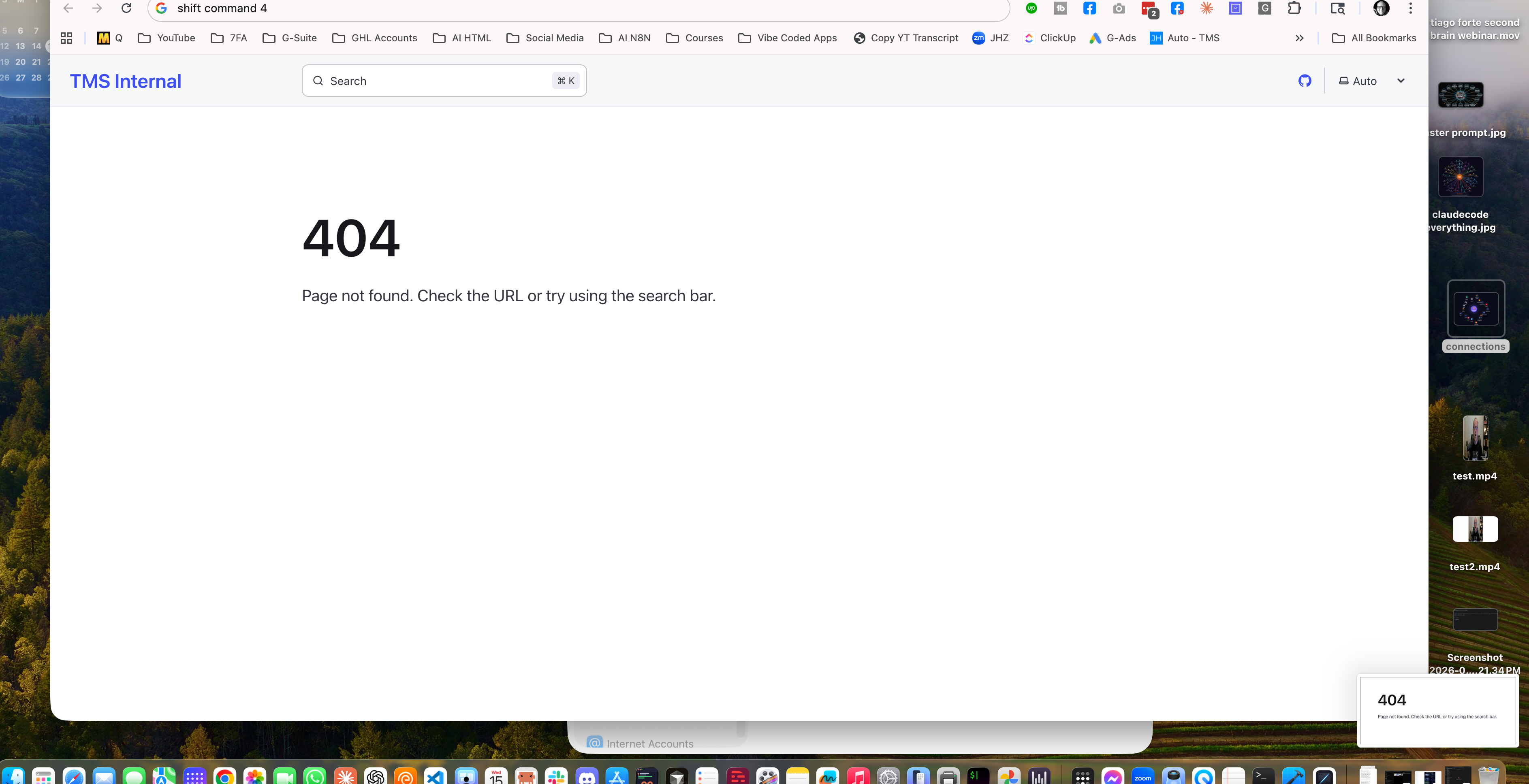
| Command + Shift + 4 | Drag a selection. A small thumbnail pops up in the bottom-right corner for a second. The screenshot saves as a file on your Desktop. |
| Command + Control + Shift + 4 | Drag a selection. No thumbnail, no file. The screenshot goes straight to your clipboard. Hit Command + V anywhere to paste it. |
That is the whole trick. One key, Control, is the difference between saving a file and putting it on the clipboard.
When to Use Each
Use Command-Shift-4 when you actually want a file. You are going to keep it for reference, attach it to something, drop it into a project folder, or open it in Preview to mark it up. The file lands on your Desktop with a name like "Screen Shot 2026-04-15 at 12.22.18 PM." You can drag it anywhere, rename it, or archive it like any other file.
The floating thumbnail in the bottom-right is a nice bonus. Click it before it fades away and you can mark the screenshot up, drag it into an app, or throw it away without ever touching the file on your Desktop.
Use Command-Control-Shift-4 when you want to paste it immediately. This is the one I use most of the time. I am in a Slack DM, I want to show someone what I am looking at, I grab the selection, hit Command-V, and the image is in the message. No file, no Desktop junk to clean up later.
Ready for a clean Desktop? Use the Control version anytime you are about to paste the screenshot somewhere. Save the plain version for the stuff you actually want to keep.
The Window Trick
Bonus move worth knowing, and one I did not learn until recently. Hit Command + Shift + 4, then tap the Space bar before you drag. Your cursor turns into a little camera icon. Hover over any window on your screen and it highlights with a blue tint. Click, and you get a clean screenshot of just that window, cropped to its exact edges with a nice drop shadow around it.

Here is the part that surprised me. This works for any window on your screen, no matter what is stacked around it. You can have ten windows piled up, hover the camera over one of them, and macOS gives you a clean screenshot of just that window, isolated from everything else. No manual cropping, no going back to clean up the other apps in the background later. macOS grabs the window directly from the window server and hands it to you cropped and clean.
It works with the clipboard version too. Command-Control-Shift-4, then Space, then click a window. Straight to the clipboard, no file.
One more trick. If you do not want the drop shadow, hold the Option key while you click the window. You get the window with no shadow, which is handy when you are dropping it into a design tool or a doc that has its own layout.
Why This Matters
For years, I took screenshots with Command-Shift-4, went to find the file on my Desktop, dragged it into whatever app I was in, and then either left the file sitting there or went back to delete it. Every single time. Dozens of screenshot files building up on my Desktop until I did a cleanup purge.
Adding the Control key saved me a step every time I grab a screenshot. I take a lot of screenshots, so it adds up fast. It is one of those small quality of life changes that makes the whole day smoother without you really noticing.
If four keys at once is too much to press, I wrote a separate post on remapping the fn key to the clipboard shortcut using Karabiner-Elements. One key instead of four. Same result, no finger contortions.
Need help customizing your Mac? Create a ticket today →
See Also
- One Key for Screenshots with Karabiner - Remap the fn key so you never have to press four keys at once
- Paste App - Clipboard history so you never lose a screenshot you copied earlier
- Mac Operating System - More Mac shortcuts and productivity fundamentals
Some links in this article are affiliate links. If you purchase through them, we may earn a commission at no extra cost to you. This helps support our content.
This article blends original content, AI-assisted drafting, and human oversight. How I write.
Stay Updated
Get notified when new content is published.
No spam. Unsubscribe anytime.