Move Here for Finder — Free macOS Extension
I wrote a whole article about how to cut and paste files on Mac — the hidden keyboard shortcut, the custom shortcut trick, all of it. And I still kept forgetting the shortcut.
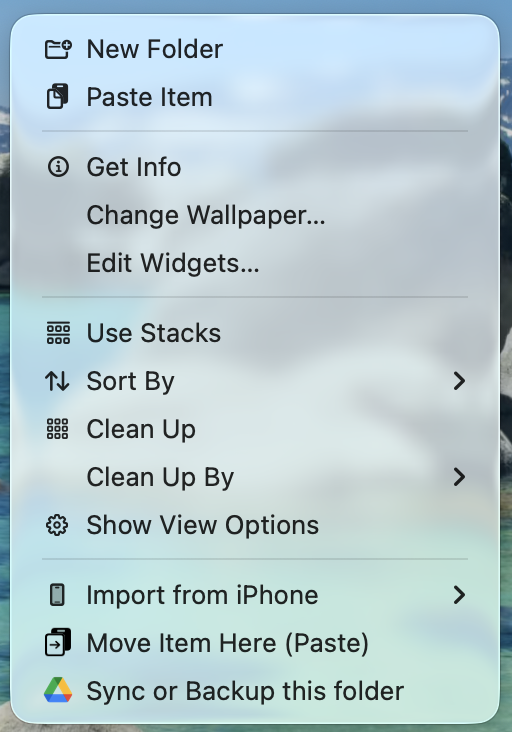
So I built the thing I actually wanted: a right-click menu option that just says Move Item Here (Paste).
What It Does
You copy a file. You go to the destination folder. You right-click in the empty space. There it is — Move Item Here (Paste). Click it, the file moves, the clipboard clears. Done.
If you're moving multiple files, it tells you how many: "Move 3 Items Here (Paste)." If something already exists at the destination, you get a prompt asking if you want to replace it or skip it.
That's it. That's the whole thing.
Why I Built It
macOS has had a move function since forever. You copy a file with Command + C, then press Command + Option + V to move it instead of paste it. The problem is nobody remembers that shortcut. I've known about it for years and I still reach for Command + V out of muscle memory.
I even set up a custom keyboard shortcut (Command + U) to make it easier — that's the approach I covered in the original article. It works fine. But I wanted something I didn't have to remember at all. Something that just showed up when I needed it.
So I sat down with Claude Code and built a Finder Sync Extension. The whole thing took about 20 minutes from "I want this" to a working app.
How It Works Under the Hood
It's a native macOS Finder Sync Extension — the same kind of plugin that Google Drive uses to show those sync status icons on your files. Apple provides this as an official extension point for adding things to the Finder context menu.
The extension watches all your mounted volumes. When you right-click in a folder, it checks if you have files on the clipboard. If you do, the menu item appears. If you don't, it stays hidden. You only see it when it's useful.
Our Toolbox. Every platform, plugin, and service we use and recommend, in one place. See the list →
The container app has no UI and hides from the Dock. It exists only to host the extension. You launch it once, enable the extension, and forget about it.
Install It
The project is open source and free. You need Xcode to build it from source.
git clone https://github.com/ojhurst/finder-move.git
cd finder-move
brew install xcodegen
xcodegen generate
xcodebuild -project MoveHelper.xcodeproj -scheme MoveHelper -configuration Release build
Copy the built app to Applications, launch it, and enable the extension:
cp -R ~/Library/Developer/Xcode/DerivedData/MoveHelper-*/Build/Products/Release/MoveHelper.app /Applications/
open /Applications/MoveHelper.app
pluginkit -e use -i com.ojhurst.MoveHelper.MoveHereExtension
Add it to your Login Items in System Settings so it starts automatically after a restart.
Want to contribute? The repo is at github.com/ojhurst/finder-move. MIT licensed — do whatever you want with it.
The Claude Code Connection
I built this with Claude Code. Described what I wanted, it wrote the Swift code for both the container app and the Finder Sync Extension, generated the Xcode project, debugged the sandbox entitlements when macOS rejected the unsigned extension, and had it running in under 20 minutes.
This is the kind of thing that would have taken me a full afternoon of reading Apple's Finder Sync documentation and fighting with Xcode project settings. Instead, I described the problem and had a working solution before I could even finish explaining why I wanted it.
Try it yourself. Get started with Claude Code →
See Also
- How to Cut and Paste Files on Mac — The keyboard shortcut approach if you prefer not to install anything
- Mac Operating System — More Mac tips including screenshots, multiple monitors, and essential shortcuts
- Claude Code — The AI coding assistant that built this extension
See Also
We are an independent affiliate of Claude Code and may earn a commission if you sign up through links on this page. We are not employees or representatives of Claude Code.
This article blends original content, AI-assisted drafting, and human oversight. How I write.
Stay Updated
Get notified when new content is published.
No spam. Unsubscribe anytime.