HighLevel Custom Fields vs Custom Values Explained
Custom Fields vs Custom Values in HighLevel
They're in the same settings menu, they have similar names, and they both store data. But custom fields and custom values do very different things — and knowing which one to use will save you from building things the wrong way.
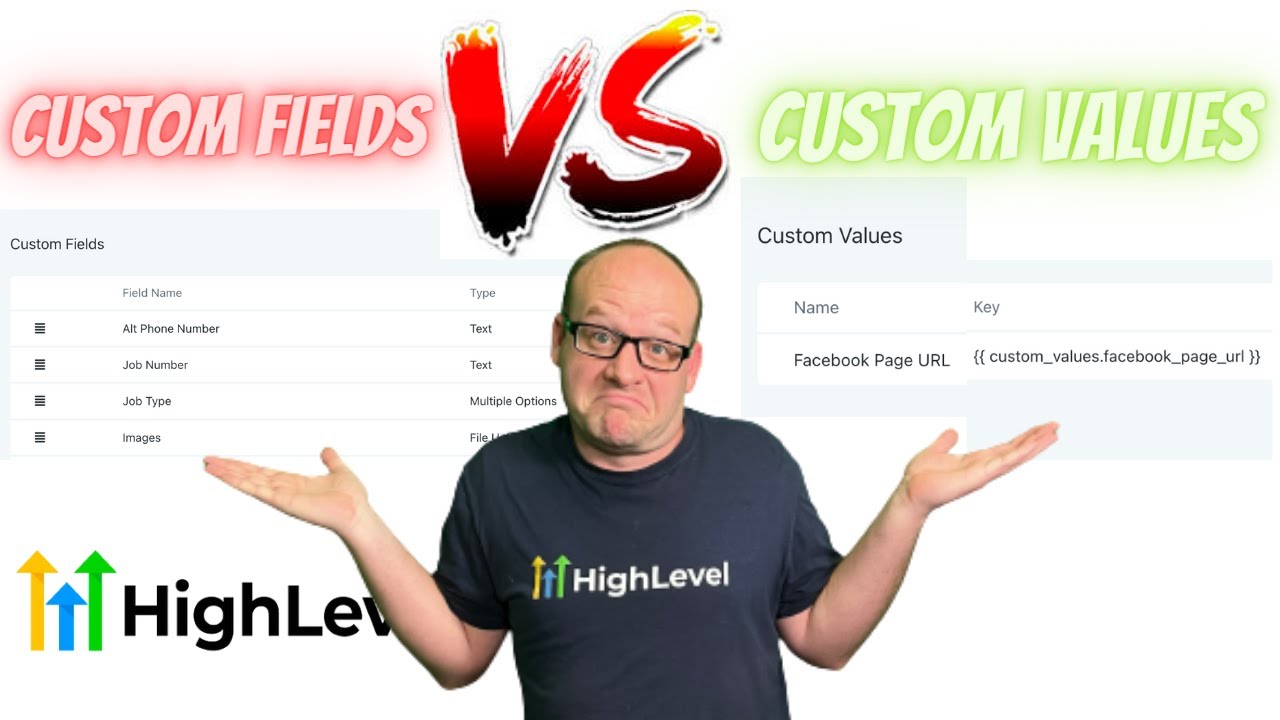
Click on the image above to watch the full video.
Custom Fields: Contact-Level Data
Custom fields are what turn a blank CRM into your CRM. Every HighLevel sub-account starts with the basics — name, email, phone number. Custom fields let you capture the data that's specific to your business.
For a party rental company, that might be the parent's signature, the street address of the event, the birthday child's name, or a participant checkbox. For an agency, it could be the client's industry, monthly ad spend, or contract end date.
The key tell: every custom field's field key starts with "contact." That's because custom fields always live on the contact record. When you create a new one, it shows up on the contact's Additional Info pane.
You get a full range of field types — text, large text, numerical, phone, monetary, dropdown, checkbox, and more. But regardless of type, they all end up on the contact record.
When to use custom fields:
- Data that varies per contact (birthday, address, company name)
- Information you need in webhook payloads or workflow conditions
- Anything that shows up in the contact detail view
Custom Values: Location-Level Constants
Custom values are tied to the sub-account itself — not to any individual contact. They don't have multiple field types. A custom value is just a piece of text.
Think of them as variables for your location. Your YouTube channel URL, Facebook page URL, Google Business listing, company phone number — things that are the same for every contact in that sub-account but different across sub-accounts. It's the same concept behind Custom GPTs — you have a standard template and then mix in the unique data.
Where custom values shine: anywhere you're building pages, emails, or funnels. Instead of hard-coding your Facebook URL into every page, you drop in the custom value key. When the page renders, it substitutes in the actual value.
Our Toolbox. Every platform, plugin, and service we use and recommend, in one place. See the list →
When to use custom values:
- Business-level info (social URLs, addresses, branding)
- Anything used in email headers/footers, funnels, or websites
- Data that's the same for every contact in a location
The Snapshot Power Move
Custom values and snapshots are a killer combination. If you're cloning a snapshot across multiple client sub-accounts, you just fill out the custom values for each location and every page, email, and funnel automatically populates with the right business info.
No manual find-and-replace across dozens of pages. Set the values once, and every template that references them updates instantly.
Trick: Unique Support Ticket Numbers
Here's a creative use case — you can nest HighLevel's built-in merge fields inside a custom value to generate dynamic data.
Want unique support ticket numbers? Create a custom value called "Support Ticket Number" and set its value to a string of date/time merge fields:
{{right_now.year}} {{right_now.month}} {{right_now.day}} {{right_now.hour}} {{right_now.minute}} {{right_now.second}}
Every time the page loads, it evaluates those merge fields and produces a number like 20260206143527. Since the seconds change constantly, every ticket gets a unique number — no database or counter needed.
Quick Reference
| Custom Fields | Custom Values | |
|---|---|---|
| Lives on | Contact record | Sub-account/location |
| Varies per | Contact | Location |
| Field types | Text, number, phone, monetary, dropdown, checkbox, etc. | Text only |
| Used in | Contact details, workflows, webhooks | Pages, funnels, emails, templates |
| Snapshot use | Captures the field structure | Captures the keys — you fill in values per location |
The One-Sentence Rule
If the data changes per person, it's a custom field. If it changes per business, it's a custom value.
See Also
This article blends original content, AI-assisted drafting, and human oversight. How I write.
Stay Updated
Get notified when new content is published.
No spam. Unsubscribe anytime.