Auto-Reply to Google Reviews with AI
Auto-Reply to Google Reviews with OpenAI and Zapier
Someone leaves a 5-star review at midnight. By morning, they've already gotten a thoughtful, personalized reply — thanking them by context, referencing what they said. Someone leaves a 1-star review? Same thing — a professional, empathetic response posted within minutes, not days.
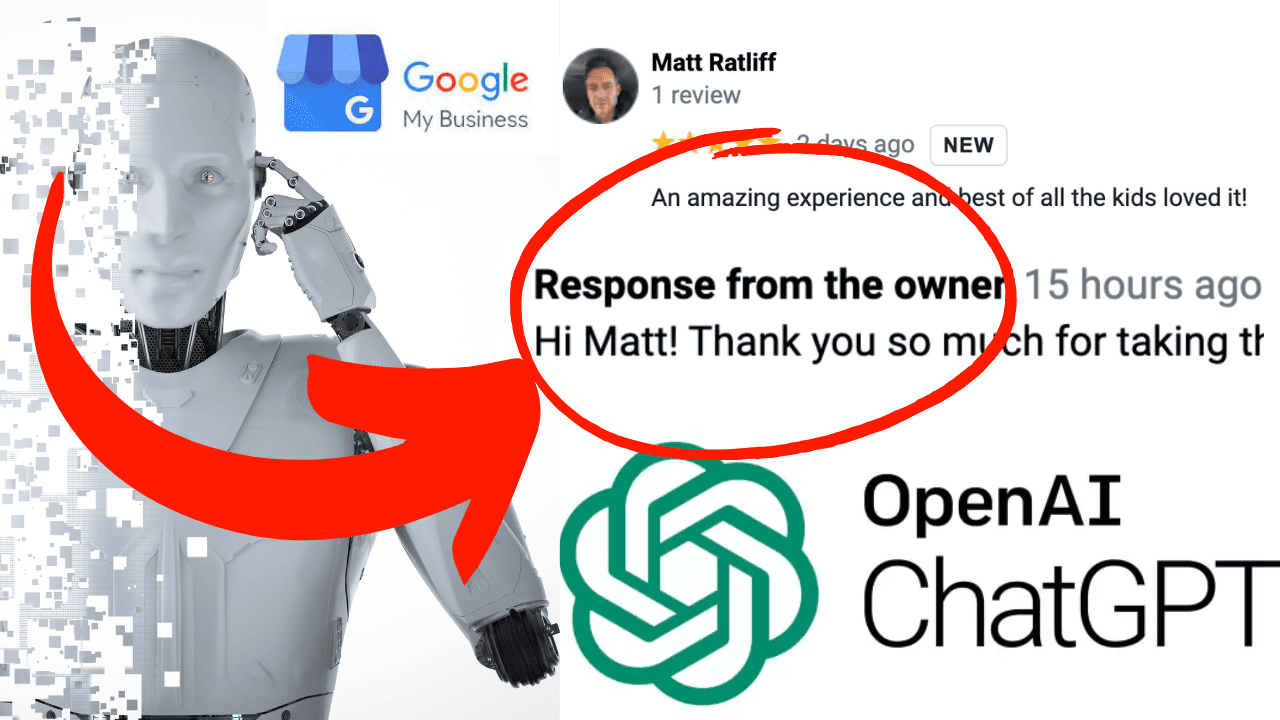
Click on the image above to watch the full video.
This walkthrough connects Google Business Profile reviews to OpenAI via Zapier, so every review gets an AI-generated reply automatically.
Step 1: Set Up the Zapier Trigger
Create a new Zap in Zapier with Google My Business as the trigger app.
- Log into your Google My Business account
- Choose the event: New Review
- Select the business location you want to monitor
Every time a new review comes in, this Zap fires.
Step 2: Connect OpenAI
Add OpenAI as the second step in your Zap.
- Sign up for an OpenAI account if you don't have one
- Generate an API key
- Paste the key into Zapier to connect the two
Step 3: Write the Prompt
This is where the magic happens. Tell OpenAI what kind of response you want. Include:
- Your business name and what you do
- The review text (passed in as a Zapier variable)
- The star rating (also a variable)
- Instructions to thank the reviewer and keep it professional
The star rating matters — a 5-star review gets an enthusiastic thank-you, while a 1-star review gets an empathetic, resolution-focused reply. OpenAI handles that nuance when you tell it to consider the rating.
Our Toolbox. Every platform, plugin, and service we use and recommend, in one place. See the list →
Step 4: Test It
Run a test with a real or sample review. Zapier passes the review details to OpenAI, which generates a response. Check:
- Does the tone match your brand?
- Is it appropriately different for high vs low ratings?
- Is it the right length?
Tweak the prompt until you're happy with the output.
Step 5: Add a Safety Net (Optional)
If you want to review responses before they go live, add a Gmail step between OpenAI and the posting step. Zapier emails you the generated reply so you can approve or edit it before it hits Google.
This is a good idea when you're first setting up — let it run with email review for a week, get comfortable with the output quality, then consider going fully automated.
Step 6: Auto-Post the Reply (Optional)
Once you trust the output, add a final Zapier step: Create Reply on the Google review. This posts the AI-generated response directly — fully hands-off.
Smarter Review Requests
This handles replies, but you also need a steady stream of reviews coming in. First, get a direct Google review link that drops people straight into the star-rating screen. Then wrap it in a trigger link so you know who actually clicked — and can follow up with those who didn't.
Native Alternative
If you're on HighLevel's Pro plan, the ChatGPT premium workflow action can handle AI processing directly inside your workflow — no Zapier or separate OpenAI API setup required. It's cleaner, cheaper, and keeps everything in one platform.
See Also
We are an independent affiliate of HighLevel and may earn a commission if you sign up through links on this page. We are not employees or representatives of HighLevel.
Some links in this article are affiliate links. If you purchase through them, we may earn a commission at no extra cost to you. This helps support our content.
This article blends original content, AI-assisted drafting, and human oversight. How I write.
Stay Updated
Get notified when new content is published.
No spam. Unsubscribe anytime.