Stream Deck: The Visual Shortcut Switcher
It was originally built for live streamers, but once you start using it, you realize it's a productivity tool for everything — video editing, email, Slack, browser shortcuts, app launching, and more.
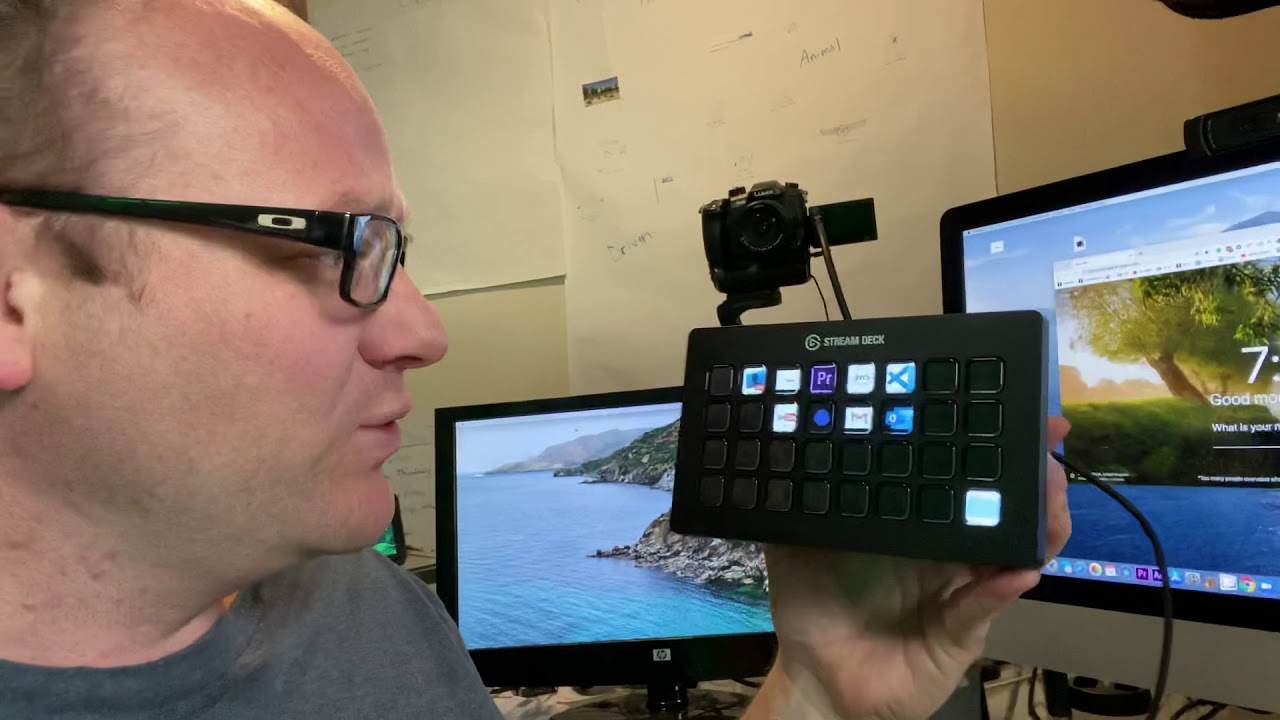
Click on the image above to watch the full video.
At its core, a Stream Deck is just a button switcher. Press a button, something happens:
- Open a website — Press a button, Facebook opens
- Launch an app — Press a button, Premiere launches
- Run a hotkey — Press a button, it sends
Cmd+Shift+Tto reopen that tab you just closed - Switch scenes — Press a button, your Live Streaming layout changes from interview mode to screen share
The magic is that each button can also be a folder, which opens up another 32 buttons. And those can have folders too. So a 32-key Stream Deck has effectively unlimited actions.
Watch Part 1: What the Heck is a Stream Deck? — The full walkthrough of folders, hotkeys, icons, and how to think about organizing your buttons.
Setting It Up
Step 1: Download the Software
Go to Elgato's website and download Stream Deck for Mac (or Windows). When you open it, you'll see a grid matching your physical device — drag actions onto buttons to program them.
Step 2: Think in Folders, Not Actions
The biggest mistake is cramming everything onto the home screen. Instead, think of your home screen as a folder menu:
| Folder | What's Inside |
|---|---|
| Ecamm Live | Go live, scenes, overlays, play video |
| Slack | Next unread, previous unread, mark as read |
| Outlook | Email view, calendar view, delete, mark as read |
| Chrome | Reopen last tab, bookmarks, dev tools |
| Premiere | Cut, ripple delete, speed controls, transitions |
Each folder gives you another full set of keys. You'll never run out of room.
Step 3: Add Hotkeys
Most of what you'll program are hotkeys — keyboard shortcuts mapped to a button. Click "Hotkey" in the sidebar, drag it onto a button, click "Click to assign," and press the key combo.
For example, to reopen a closed Chrome tab:
- Drag a hotkey action onto a button
- Name it "Reopen Tab"
- Assign
Shift+Cmd+T - Now press the button instead of remembering the shortcut
Step 4: Add Custom Icons and GIFs
Stream Deck buttons support animated GIFs, which makes the whole device come alive. Search Google for icon animations (like "YouTube icon animation GIF"), save the file, then right-click a button and choose "Set from file."
For app icons, when you map a "System: Open" action to an application, Stream Deck often pulls in the app's icon automatically.
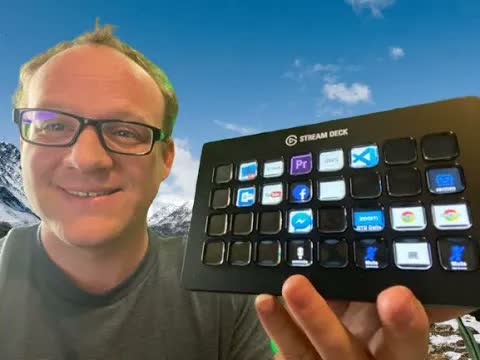
Watch Part 2: Stream Deck Ecamm Live — How to Set it up From Scratch — Step-by-step setup of folders, hotkeys, custom icons, and the Ecamm Live plugin.
Profiles: The Game Changer
Folders are great, but profiles take it to another level.
A profile is a complete button layout tied to a specific app. When that app comes to the foreground, Stream Deck automatically switches to its profile.
Our Toolbox. Every platform, plugin, and service we use and recommend, in one place. See the list →
- Click on Slack → Stream Deck shows your Slack shortcuts
- Click on Chrome → Stream Deck shows your Chrome shortcuts
- Click on Premiere → Stream Deck shows your editing shortcuts
No manual switching. It just knows.
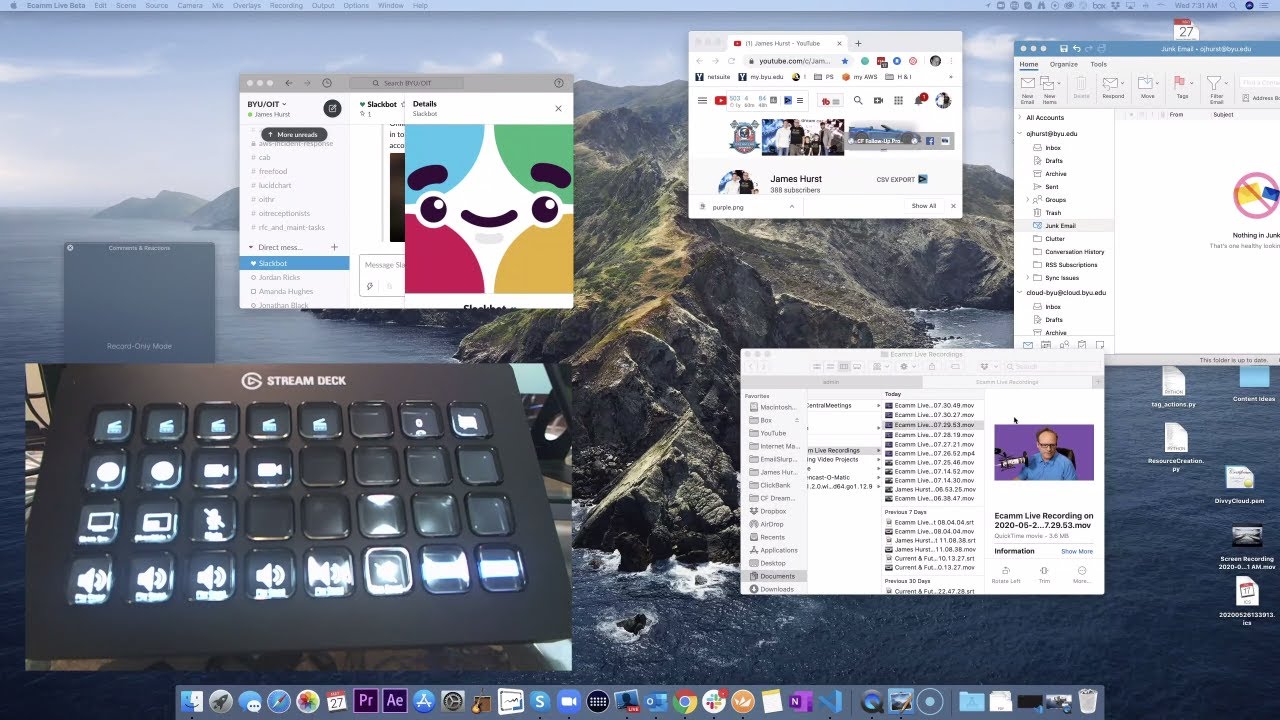
Watch Part 3: Stream Deck Profiles Are a Game Changer — Why profiles beat folders, and how to set up automatic app switching.
Setting Up Profiles
- Go to Edit Profiles in the Stream Deck app
- Click Add New and name it (e.g., "Adobe Illustrator")
- Under "Application," select the app it should activate for
- Build out the buttons for that app
- Add a "Switch Profile → Default" button as your way back to the home screen
Pro Tip: Multi-Action App Launch
On your default profile, set up buttons that do two things at once:
- Switch to the app's profile
- Open the app itself
One button press, and you're in the app with all its shortcuts ready.
If you're using Ecamm Live for Live Streaming, Stream Deck has a dedicated plugin that gives you native control:
- Run Scene — Switch between camera angles, screen share, picture-in-picture, interview layout
- Go Live / Stop — Start and stop your broadcast
- Play Video — Queue up and play MP4 files mid-stream
- Show/Hide Overlay — Toggle overlays like "Taking questions live! Call 888-825-5225" on demand
- Next/Previous Scene — Cycle through your scene list
- Viewer Count — Live display of how many people are watching
To set it up: Open Ecamm Live → Menu → "Install Stream Deck Plugin." This imports a default profile you can customize.
Hotkey Switch: Toggle Actions
Some actions need an on/off toggle — like mute/unmute in Zoom. The Hotkey Switch lets one button do both:
- First press: Sends
Cmd+Shift+A(mute in Zoom) - Second press: Sends
Cmd+Shift+Aagain (unmute)
You can set different icons for each state — a red mic for muted, a green mic for unmuted. The button visually shows you where you're at.
Multi-Actions
Chain multiple actions into a single button press:
- Open Ecamm + Go Live — Launch the app and start broadcasting
- Open Chrome + Navigate to URL — Browser opens with a specific page loaded
- Switch Profile + Open App — Jump to an app's shortcuts and launch it simultaneously
Drag a "Multi-Action" onto a button, then stack individual actions inside it in order.
You can export your entire Stream Deck setup and share it:
- Go to Edit Profiles
- Click the down arrow on a profile
- Hit Export
Import works the same way — load someone else's profile and adapt it. This is useful for teams or for creating templates you can share.
Which One to Get
| Model | Keys | Best For |
|---|---|---|
| Stream Deck Mini | 6 keys | Quick actions, minimal desk space |
| Stream Deck MK.2 | 15 keys | Most people — good balance of keys and size |
| Stream Deck XL | 32 keys | Power users who want everything on one screen |
The 15-key is probably enough for most people since folders and profiles give you unlimited actions. The 32-key is for when you want to go big or go home.
- Live Streaming — How to use Stream Deck with Ecamm Live for professional broadcasts
- Gear and Equipment — Other hardware that levels up your content setup
- Zoom — Use hotkey switches for mute/unmute and other Zoom controls
- One Key for Screenshots — A software approach to the same problem: remap any key to any shortcut with Karabiner-Elements
We are an independent affiliate of Stream Deck and may earn a commission if you sign up through links on this page. We are not employees or representatives of Stream Deck.
We are an independent affiliate of Ecamm Live and may earn a commission if you sign up through links on this page. We are not employees or representatives of Ecamm Live.
This article blends original content, AI-assisted drafting, and human oversight. How I write.
Stay Updated
Get notified when new content is published.
No spam. Unsubscribe anytime.