One Key for Screenshots (Remap fn with Karabiner)
The Four-Finger Claw
If you take a lot of screenshots on a Mac, you know the pain.
Command-Control-Shift-4. Four keys. At the same time. With one hand. While your other hand is on the mouse, ready to drag the selection box.
And before you even get to the claw, you have to remember which four keys. Was it Command-Control-Shift? Or Command-Option-Shift? Command-Control-Option? There are so many screenshot shortcuts on Mac that the hardest part is keeping them straight. You end up Googling it, again, and then doing the claw, again.
I use screenshots constantly. Pasting into conversations, dropping them into docs, sending them to people. And every single time, I had to remember the combo and then do this awkward hand contortion to hit all four at once. It is like a piano chord that was never meant for human fingers.
The regular screenshot shortcut, Command-Shift-4, saves a file to your Desktop. That is fine if you want a file. But most of the time I just want to paste it somewhere immediately. Command-V. Done. For that, you need the clipboard version, and the clipboard version adds Control to the mix. Four keys. If you need a refresher on the two base shortcuts, I broke them down in Mac Screenshot Shortcuts: File vs Clipboard.
So today I fixed it. One key. The fn key in the lower-left corner of the keyboard. Press it, drag your selection, Command-V wherever you want it.
Here is how.
What You Need
Karabiner-Elements is a free, open-source keyboard remapper for macOS. It has been around for years and it is super reliable. You can remap any key to any other key, or to any key combination.
Install it with Homebrew:
brew install --cask karabiner-elements
Or download it from the Karabiner-Elements website.
The Permissions Gauntlet
This is the part that surprised me. Installing Karabiner takes about two minutes. Getting macOS to actually let it work takes another ten, and only because the permissions are buried.
Karabiner needs three things from macOS:
1. System Extension approval. When you first open Karabiner-Elements, macOS blocks its driver. You get a notification that a system extension was blocked. Click "Open System Settings" and it takes you to Privacy & Security, but the toggle you need is not there. It is under Login Items & Extensions.
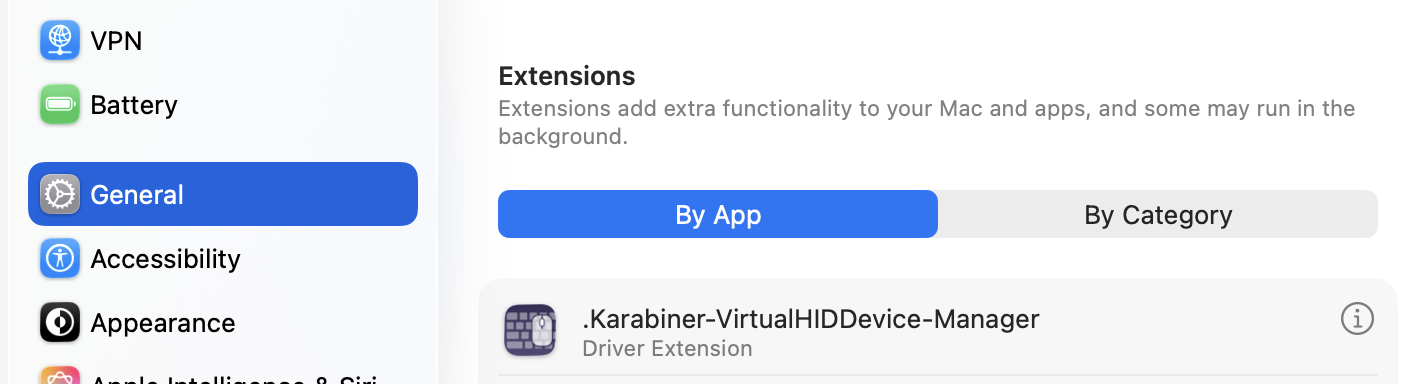
2. The Driver Extensions toggle. This is the one that got me. Open System Settings, go to Login Items & Extensions, and scroll all the way to the bottom. Under Extensions, there is a category called Driver Extensions. Click the little info icon next to it.
Inside, you will find Karabiner-DriverKit-VirtualHIDDevice. Toggle it on. Without this, Karabiner cannot intercept any keystrokes at all.
Our Toolbox. Every platform, plugin, and service we use and recommend, in one place. See the list →
3. Input Monitoring and Accessibility. Karabiner also needs Input Monitoring permission (to read your keystrokes) and Accessibility permission (to simulate new ones). macOS should prompt you for both when you first launch the app. Make sure Karabiner-Core-Service is toggled on.
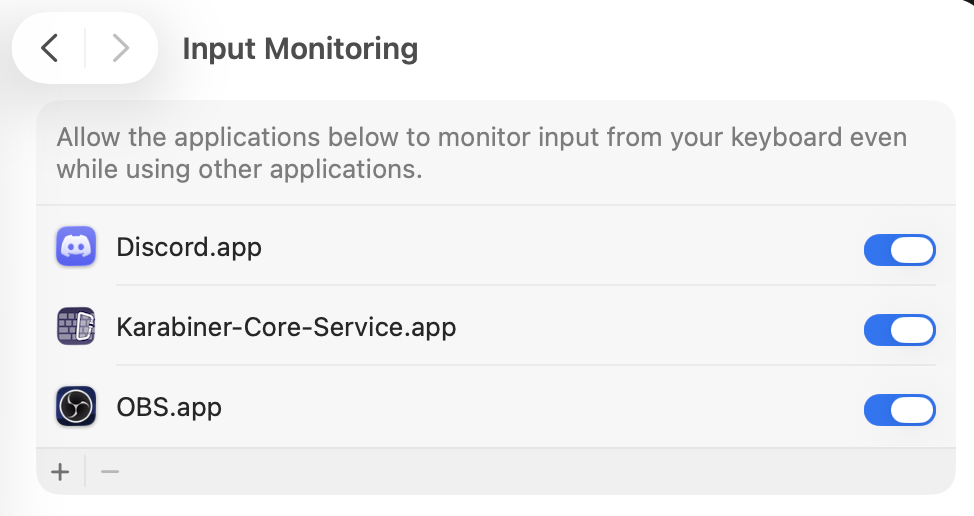
If you skip any of these, the app runs but nothing happens. No errors, no warnings. Your remapped keys just do not work. The Driver Extensions toggle is the one most people miss because it is buried at the very bottom of a settings page, behind an info icon that does not look clickable.
Turn Off the Globe Key
On newer Macs, the fn key doubles as the globe key. By default, pressing it opens the emoji picker. That means macOS intercepts the key before Karabiner ever sees it.
Fix: System Settings, Keyboard, find "Press globe key to" and change it from "Show Emoji & Symbols" to "Do Nothing."
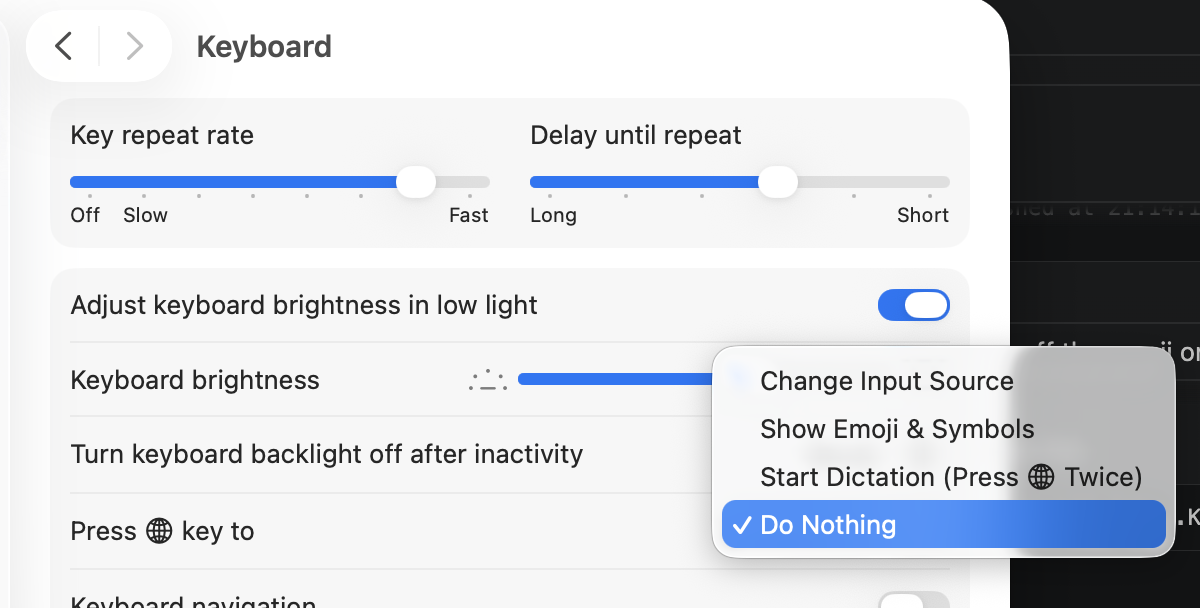
You will lose the quick emoji picker, but you can still access emojis through Control-Command-Space or the Edit menu in any app.
The Remap
Once permissions are sorted, the actual remap is one rule in Karabiner's config file at ~/.config/karabiner/karabiner.json. You can edit it directly or use Karabiner's GUI under Complex Modifications.
The rule maps the fn key to Command-Control-Shift-4. That is it. One key in, four keys out.
If you want to set it up through the config file, the key identifiers are:
- From: apple_vendor_top_case_key_code: keyboard_fn (this is how Apple's modern keyboards report the fn key)
- To: key_code 4, with modifiers left_command, left_control, left_shift
Karabiner auto-reloads when the config file changes. No restart needed.
The Result
Press fn. Drag a box. The screenshot is on your clipboard. Command-V it wherever you want.
If your first time through takes 15 minutes, that is normal. Most of that is the permissions piece. Once Karabiner is set up, you will probably never touch it again unless you want to remap something else.
Need help setting this up? Create a ticket today →
See Also
- Mac Screenshot Shortcuts: File vs Clipboard - The two base Command-Shift-4 shortcuts explained, before you remap them
- Mac Operating System - Screenshot shortcuts, keyboard customization, and other macOS fundamentals
- Stream Deck - If you want visible, labeled buttons instead of memorizing shortcuts
- Paste App - Clipboard history so you never lose a screenshot you copied earlier
See Also
Some links in this article are affiliate links. If you purchase through them, we may earn a commission at no extra cost to you. This helps support our content.
This article blends original content, AI-assisted drafting, and human oversight. How I write.
Stay Updated
Get notified when new content is published.
No spam. Unsubscribe anytime.