How I Stopped Claude Code Sessions From Stealing My Cursor
The Pain: Five Sessions, One Cursor
I live in VS Code. On a normal day I have several Claude Code sessions open side by side, each working on a different project. I also have a standing rule for all of them: when you finish something I should see, open it for me.
With one session, that rule is great. With five, it turned into a slot machine. I would be halfway through typing a prompt, another session would finish and open a page, the browser would jump to the front, and my next few keystrokes landed in the wrong window.
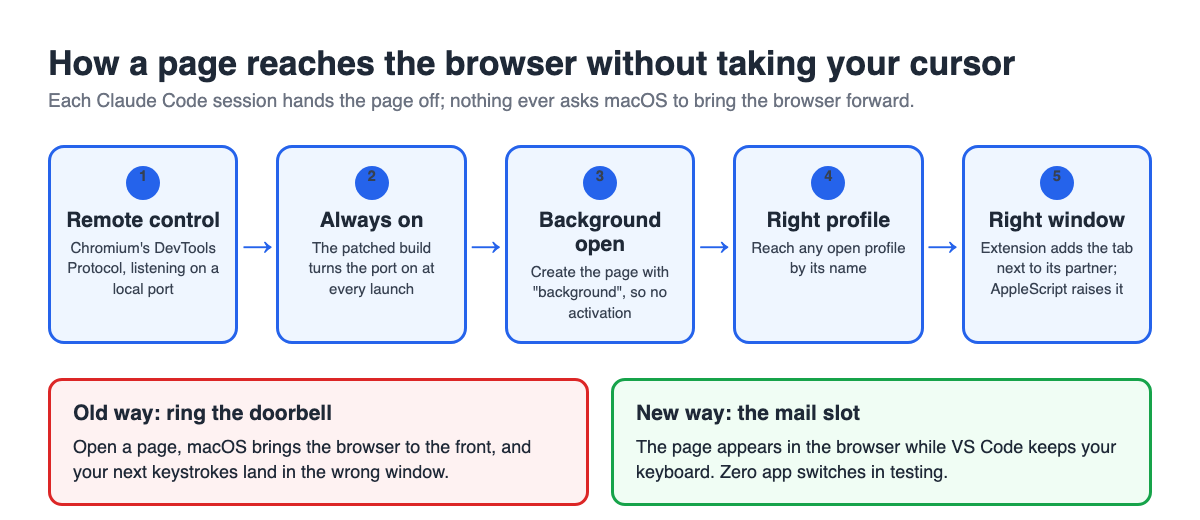
The cause: every normal way a program opens a web page on a Mac also tells macOS to bring the browser to the front. The browser becomes the active app, and the active app gets the keyboard.
What Does Not Work
I had Claude try every standard way to open a page while a script logged the frontmost app every 20 milliseconds. All of these pulled the browser forward:
| Method | What happened |
|---|---|
| macOS open -a with the browser and a URL | Browser activates and stays in front |
| macOS open -g (the "do not bring to foreground" flag) | Browser activates anyway |
| AppleScript make new tab in a browser window | Browser in front for about 1.5 seconds |
| AppleScript set URL of tab on an existing tab | Same, about 1.5 seconds |
| DevTools endpoint /json/new | Browser activates |
| DevTools Target.activateTarget | Browser activates |
| A page's own window.open | Browser activates |
The pattern: anything that creates a window or tab through the normal path, or asks for a tab to be "activated," triggers macOS app activation.
The Recipe
1. Turn on the DevTools Protocol
Chromium ships with a remote control called the Chrome DevTools Protocol (CDP). Start the browser with the --remote-debugging-port flag and it listens on that local port for JSON commands over a WebSocket. You get the browser-level WebSocket address from the /json/version endpoint on that port.
Two catches:
- Google Chrome refuses the port on your everyday profile. Recent Chrome versions only allow remote debugging with a separate --user-data-dir. Chromium builds without Google branding do not have that block, which is one reason I run my own Chromium build.
- The flag is lost when you launch from the Dock. The Dock starts the app with no flags. I patched my build so the browser process adds the remote-debugging flag to its own command line at startup (in ChromeMainDelegate::BasicStartupComplete) unless a port, a pipe or a separate user-data-dir was already given. Now the port is on no matter how the browser starts.
2. Create the page in the background
Send Target.createTarget over the browser-level WebSocket with background set to true. That one option is the whole trick. The browser creates the tab without asking macOS to activate the app. Add newWindow set to true if you want a fresh window instead of a tab.
3. Pick the profile
Each Chromium profile shows up in CDP as a "browser context." Stock Chromium only lets Target.createTarget use the profile the browser started with. Ask for another profile's context and you get "Failed to find browser context."
My build has a small patch in DevToolsBrowserContextManager::GetProfileById: if the ID is not one of the temporary contexts, it walks the profile manager's loaded profiles and matches the profile's folder name ("Default," "Profile 1") or its unique ID. Now browserContextId in Target.createTarget can simply be the profile's folder name. It never loads a closed profile, so that profile has to have a window open.
Our Toolbox. Every platform, plugin, and service we use and recommend, in one place. See the list →
4. Put the tab in the right window
Target.createTarget has no way to say "put this tab in that window." Browser extensions can, so I used one I already had installed in every profile.
- Find the extension's service_worker target in the list from Target.getTargets, filtered to the profile's browserContextId.
- Attach to it with Target.attachToTarget (flatten set to true), then run code inside it with Runtime.evaluate.
- For a new window, call chrome.windows.create with a list of URLs and focused set to false.
- To add a tab next to one you already opened, call chrome.tabs.create with that window's windowId.
None of those calls activate the browser.
5. Make it visible without activating
A background window can land underneath the browser's other windows, where you never see it. Two AppleScript commands fix that without activating the app:
- set index of the window to 1 puts it on top of the browser's own window stack.
- set active tab index makes the new tab the one showing.
The extension's window IDs and AppleScript's window IDs match, so the script can find the exact window it just made.
Put together: a script sends one background Target.createTarget (or an extension call for grouped tabs), then two AppleScript lines bring it to the top of the browser. My opener script tries that path first and only falls back to the normal open command if the port is off.
Need help with this? Create a ticket today →
How I Tested It
I kept typing while Claude opened pages, with the frontmost-app logger running.
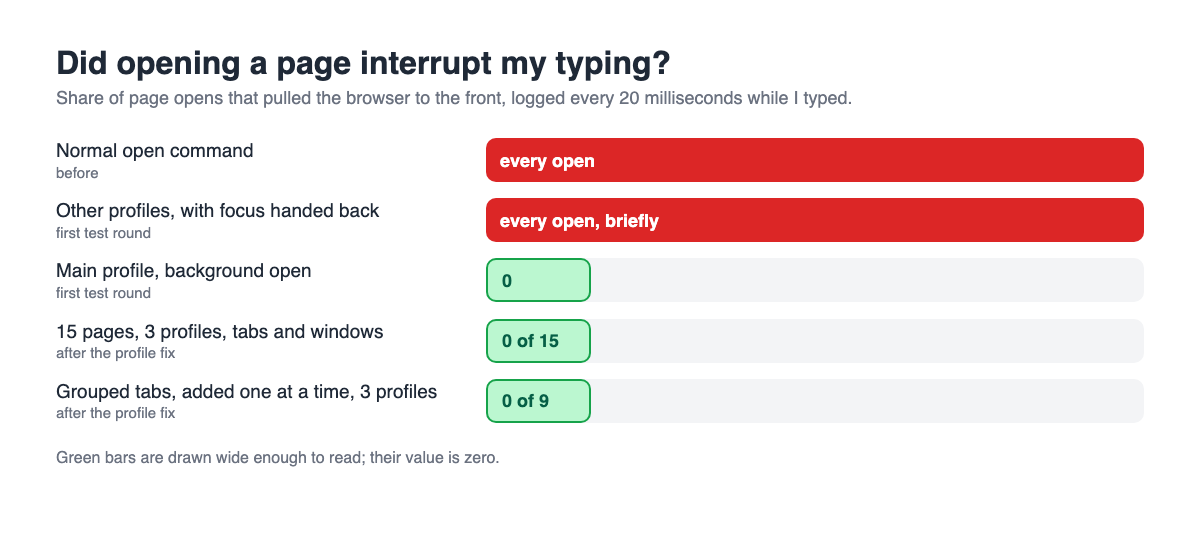
- First round, 50 sites across three profiles. The main profile was clean. Other profiles still bumped me, because the stock browser could not reach them yet, and the fallback opened them normally and handed focus back. I felt every one.
- After the profile patch, 15 pages across three profiles, mixing tabs and windows. Zero app switches.
- Grouped tabs: open a page in a new window, wait a couple of seconds, add a second page next to it, then a third, across profiles. Zero app switches again.
The Downsides
- The profile part needs your own Chromium build. The background trick works on any Chromium for the profile it started in. Reaching every profile took a source patch and a rebuild.
- The port is always listening. Any program running on your Mac can drive your browser through it. It only answers on the local machine, not the network, but it is a door you are choosing to leave open.
- A closed profile still bumps once. The first page for a profile with no window open falls back to the normal path.
- Do not quit the browser right after it starts. During testing, a quit sent a few seconds after launch, while the browser was still restoring tabs, closed every window and left the browser hung. We rebuilt the tab list by reading Chromium's session files and reopening each page. Give it a few seconds before quitting.
What It Feels Like Now
Pages from all my sessions still open for me. They just arrive the way a coworker drops a printout on your desk instead of tapping you on the shoulder. When I glance at the browser, the new tab is already sitting there next to the page it belongs with.
It is a small quality-of-life fix, but I spend most of my day typing to AI agents, and not losing a sentence to a surprise window is super nice.
See Also
Some links in this article are affiliate links. If you purchase through them, we may earn a commission at no extra cost to you. This helps support our content.
This article blends original content, AI-assisted drafting, and human oversight. How I write.
Stay Updated
Get notified when new content is published.
No spam. Unsubscribe anytime.