The Sales Coach on My Screen That Zoom Could Not See
Today I was on a group Zoom call, teaching and doing some sales role play. In the background, Claude Code was listening to the call and writing me coaching notes: a question to ask next, an objection to handle, a claim worth checking. I wanted those notes floating on my screen where I could glance at them, so we built a small card for that during the call.
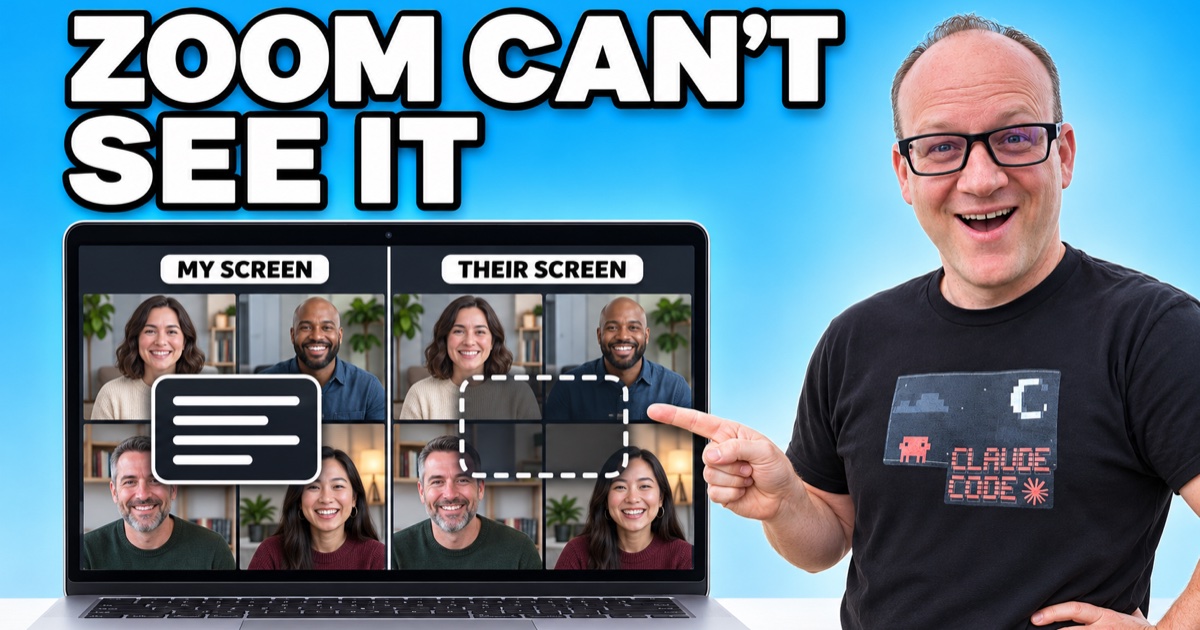
Then I shared my screen and asked everyone if they could see it. The answer was "No." The card was sitting right there on my monitor, and nobody on the call could see it. My own screenshots could not capture it either.
What We Built
The setup has three parts:
- Listen. The Mac records Zoom's audio on its own track and my microphone on another, so every line of the transcript already knows who said it. A speech-to-text model running on my Mac turns it into text.
- Think. Every 15 to 45 seconds, Claude reads the newest part of the transcript and writes a short card labeled ASK, DO or NOTICE. Over about an hour on today's call it wrote 125 of them.
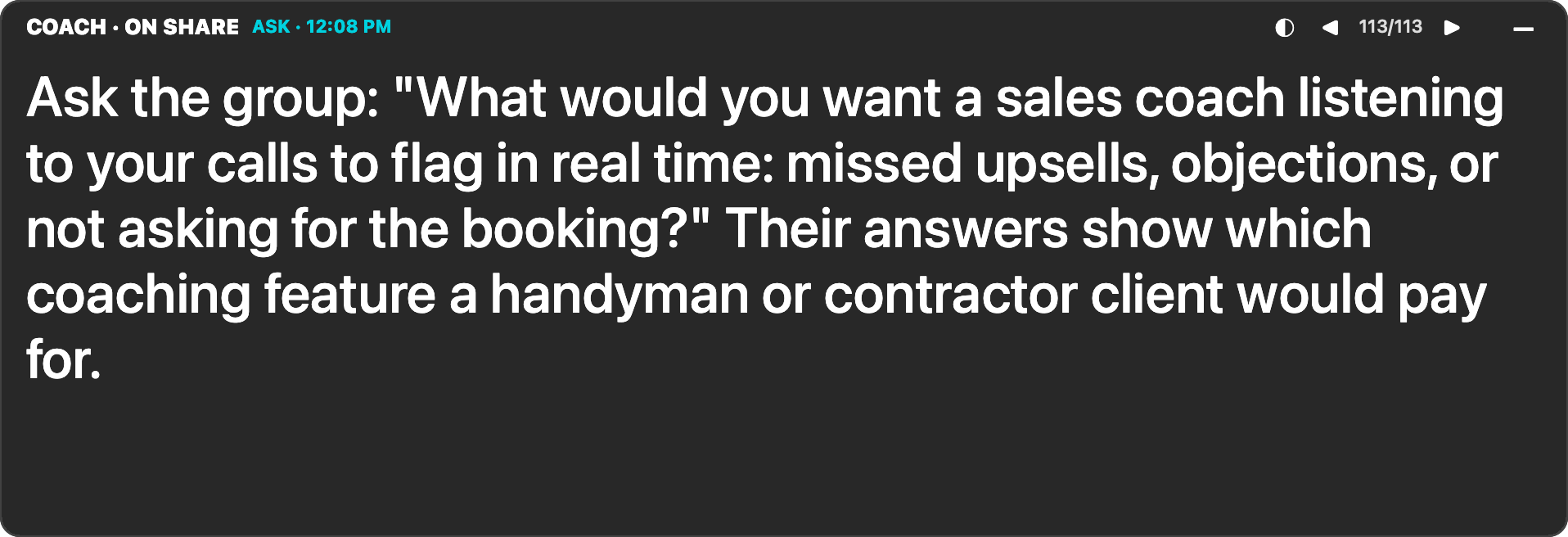
- Show. A tiny native Mac window floats over everything and shows the newest card. You can drag it anywhere, resize it, and step back through earlier cards.
The first version of the card was frosted glass, so you could see the Zoom window through it. Over the call we added dragging, resizing, a fold-down button and a solid mode. Each change was one more request to Claude while the call kept going.
Why Zoom Could Not See It
I assumed the see-through look was the reason it was hidden. It was not. The trick is one setting on the window.
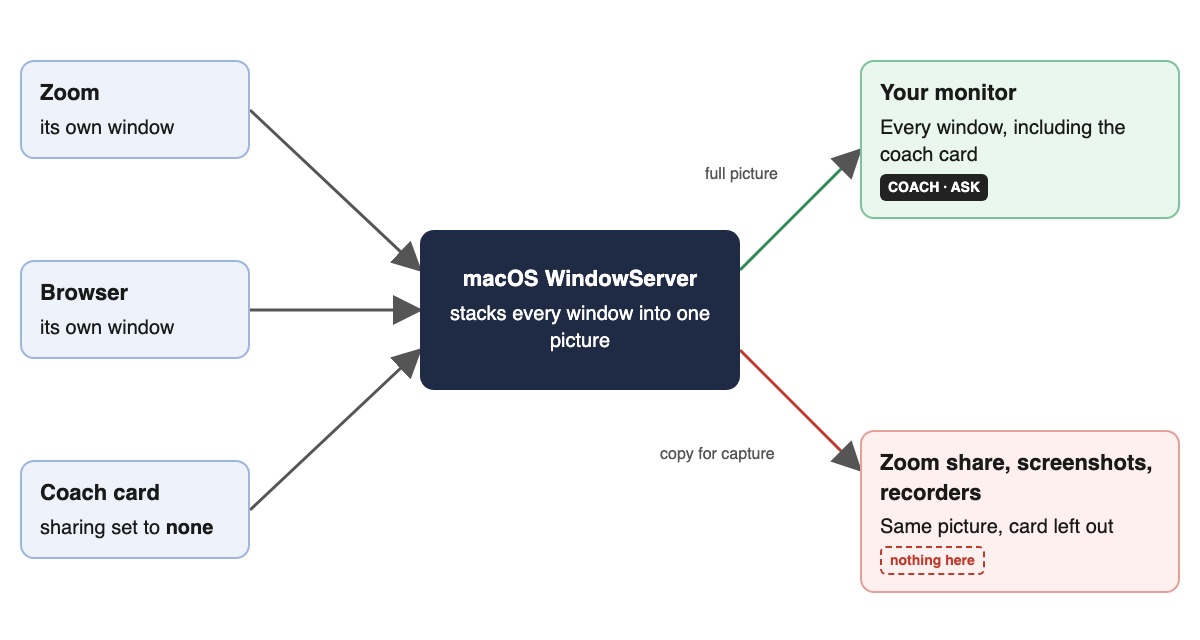
Every app on a Mac draws its own window. A part of macOS called the WindowServer then stacks all of those windows into the single picture your monitor shows. Think of it as the person who lays every transparency sheet on the overhead projector.
When Zoom shares your screen, it does not read your monitor. It asks the WindowServer for a copy of the screen. Screenshots, screen recorders and notetaker apps all ask the same way.
Each window carries a setting that tells the WindowServer whether other apps are allowed to capture it. We set the coach card's sharing to none. That tells the WindowServer to draw the card on the real display but leave it out of any copy it hands to another app. So the WindowServer builds two pictures:
- Your monitor gets every window, including the card.
- Zoom, screenshots and recorders get the same picture without the card. They see whatever was behind it, as if the card were never there.
Turning It Back On
Halfway through the call I wanted the group to see the card, because it made a good demo. Making it solid did not help, because transparency was never the issue. The fix was to switch the window's sharing setting back on so other apps could capture it again.
Our Toolbox. Every platform, plugin, and service we use and recommend, in one place. See the list →
The card now has a button that flips between two modes:
| Mode | Look | Who can see it |
|---|---|---|
| Private | Frosted glass | Only you, on your own monitor |
| On share | Solid dark | You, Zoom, screenshots and recordings |
In "On share" mode the header says so, which means you always know which mode you are in. One tip: if Zoom is sharing a single app window instead of your whole screen, no other window shows up on the share, this one included. Share the whole screen when you want the group to see it.
Need help with this? Create a ticket today →
What Still Sees It
This setting controls what other apps can capture. It does not make the window invisible in the real world. These still see it:
- A camera pointed at your monitor, or anyone standing behind you.
- A hardware capture card on your HDMI output, because it receives the finished picture that goes to the monitor.
- Other versions of macOS. Apple has changed how this setting behaves before. After a macOS update, share your screen with a second device and check before you rely on it.
Because the card hides from screenshots too, I could not screenshot it to check how it looked. We added a way for the card to save a picture of itself, which is where the card image above came from.
Use It to Coach Yourself
I think of this as a teleprompter for conversations. It holds the questions I want to remember to ask and the objections I want to handle well. It is not there to put words in my mouth or to hide something from the person I am talking to. I still have to listen, and I still have to mean what I say.
If you build something like this, use it the same way: for your own notes and your own coaching. Being upfront with people is still the best sales technique I know. If you want the bigger picture of how I use Claude on calls, read Notetaker 2.0: Letting AI Triage My Zoom Calls and Email.
See Also
Some links in this article are affiliate links. If you purchase through them, we may earn a commission at no extra cost to you. This helps support our content.
This article blends original content, AI-assisted drafting, and human oversight. How I write.
Stay Updated
Get notified when new content is published.
No spam. Unsubscribe anytime.