HighLevel Merge Fields & UTM Parameters
HighLevel Merge Fields & UTM Parameters: The Complete Guide
Merge fields and UTM parameters are two of the most underused features in HighLevel. Merge fields let you personalize everything — emails, SMS, landing pages, workflows — without hardcoding a single name or phone number. UTM parameters tell you exactly where your leads are coming from so you stop guessing which marketing channels actually work.
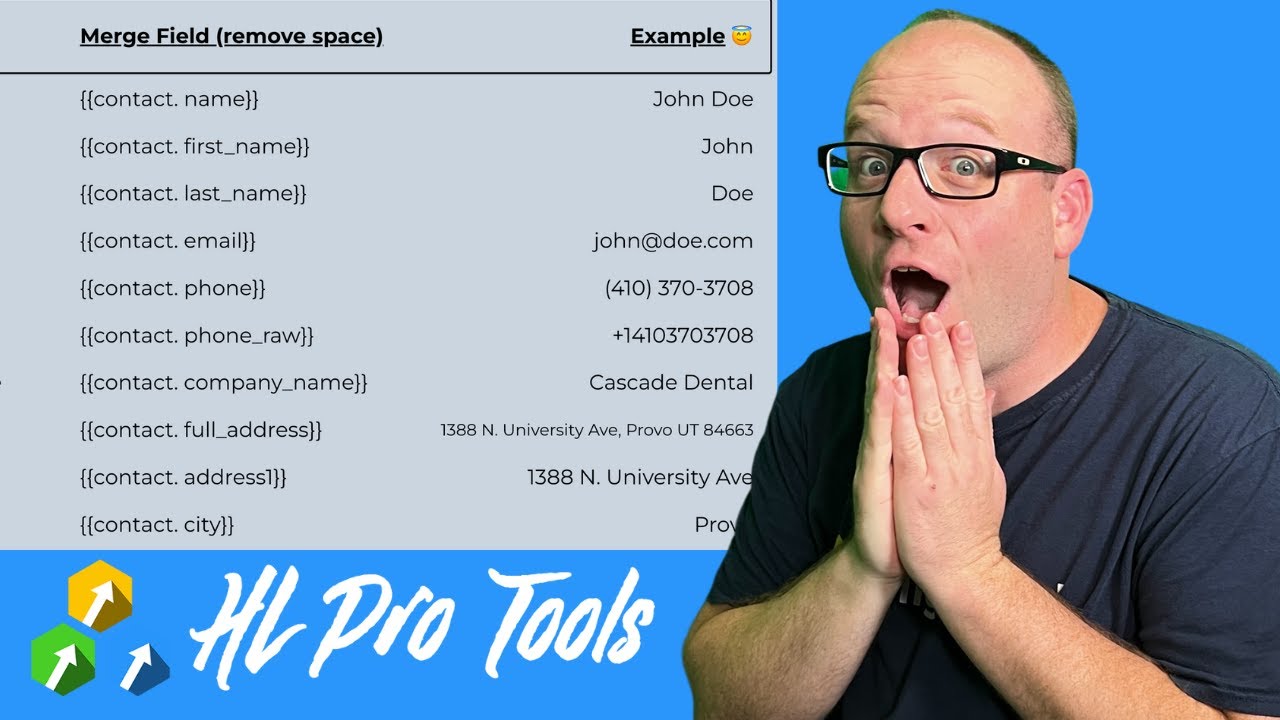
Click on the image above to watch the full video.
This is a walkthrough of both, based on a training James did for the HLPT community. If you want the quick-reference version, the three-column merge fields table lives at jameshurst.com/merge.
What Are Merge Fields?
Merge fields are variables that pull in real data when the message is sent or the page loads. Instead of typing "Hi James," you type {{contact.first_name}} and HighLevel swaps in the actual name for each contact.
They work everywhere — emails, SMS, message templates, landing pages, funnels, call scripts, and workflow actions. Anywhere HighLevel renders content for a specific contact, merge fields can personalize it.
The format is always double curly braces: {{category.field_name}}. The category tells you what kind of data it is — "contact" for contact-level info, "location" for business-level info, "right_now" for date and time values.
The Three-Column Reference
HighLevel's official docs show two columns — the field name and the merge code. That's not enough. You need to know what the output actually looks like.
"I figured this really needed to be three columns — what is this thing, what is the code, and what is an example of what it looks like."
That's why James built a better version. Three columns: Field Name, Merge Code, and Example Output. So instead of guessing whether {{contact.phone}} renders as "(801) 555-1234" or "8015551234," you can see the exact format before you build anything.
The full reference is at jameshurst.com/merge.
Here are the most commonly used merge fields:
| Field | Merge Code | Example Output |
|---|---|---|
| First Name | {{contact.first_name}} | James |
| Last Name | {{contact.last_name}} | Hurst |
| Full Name | {{contact.name}} | James Hurst |
| {{contact.email}} | james@example.com | |
| Phone | {{contact.phone}} | +18015551234 |
| Company | {{contact.company_name}} | The Marketing Show |
| Current Year | {{right_now.year}} | 2026 |
The full list includes dozens more — address fields, appointment fields, custom fields, and location-level values. Bookmark the reference and keep it handy.
How to Test Merge Fields
Don't trust that a merge field works until you've seen it render. Here's how to test:
- Create a workflow with a trigger (form submission, manual, whatever is easiest)
- Add an email action
- Dump every merge field you plan to use into the email body
- Create a test contact with data filled in for each field
- Trigger the workflow for that contact
- Check the sent email — every merge field should show real data
If a field comes through blank, either the contact record is missing that data or you have a typo in the merge code. This five-minute test saves hours of debugging later.
UTM Parameters Explained
UTM parameters are tags you add to the end of a URL to track where traffic comes from. When someone clicks a UTM-tagged link and lands on your HighLevel page, those parameters get stored on their contact record.
There are three that matter:
- utm_source — Where the traffic comes from (google, facebook, youtube, newsletter)
- utm_medium — How they got there (cpc, organic, email, social)
- utm_campaign — Which specific campaign (black_friday, spring_sale, webinar_jan)
So a URL like yoursite.com?utm_source=facebook&utm_medium=cpc&utm_campaign=spring_sale tells you this person came from a paid Facebook ad for your spring sale.
First Attribution vs Last Attribution
HighLevel tracks both, and the difference matters.
"We're kind of interested in knowing how do they first find us... what's that initial marketing channel."
First attribution captures the very first time someone interacts with your brand. Six months ago they clicked a YouTube video, landed on your site, and filled out a form. That first touch is locked in permanently — it never gets overwritten.
Last attribution captures the most recent interaction. If that same person later clicks a Facebook ad, the last attribution updates to Facebook. First attribution still says YouTube.
Why does this matter? First attribution answers "what marketing channel introduced this person to us?" Last attribution answers "what brought them back this time?" Both are valuable for different decisions.
Our Toolbox. Every platform, plugin, and service we use and recommend, in one place. See the list →
Building UTM URLs
You don't need to type UTM parameters by hand. Google's Campaign URL Builder generates the full tagged URL for you.
Fill in:
- Website URL — Your landing page
- Campaign Source — google, facebook, linkedin
- Campaign Medium — cpc, email, organic, social
- Campaign Name — Whatever identifies this campaign
The tool spits out a URL with all the parameters appended. Copy it, use it in your ads or emails, and every click gets tracked automatically.
A few rules to keep your data clean:
- Lowercase everything — "Facebook" and "facebook" show up as two different sources
- Use underscores, not spaces — "spring_sale" not "spring sale"
- Be consistent — Pick a naming convention and stick with it across all campaigns
UTM in Practice
Ad Managers
When you set up ads in Facebook Ads Manager or Google Ads, paste your UTM-tagged URL as the destination. Every click from that ad carries the tracking data into HighLevel.
"Wait, this was direct traffic, it was on the keyword blouse, the spring sale, it was banner ad 24 — this whole thing basically has all these in it."
Click IDs
You'll also notice Facebook and Google append their own tracking parameters automatically — fbclid (Facebook Click ID) and gclid (Google Click ID). These work alongside UTM parameters to give the ad platforms their own conversion tracking.
HighLevel reads these too. So even if you forget to add UTM parameters, the click IDs still provide some tracking data. But UTM parameters give you cleaner, more readable reporting — don't rely on click IDs alone.
How HighLevel Stores It
When a contact visits a UTM-tagged URL, HighLevel writes those values to the contact record. You can see them in the contact's details, use them in workflow conditions, and filter by them in smart lists. This means you can build automations that behave differently based on where the lead came from — a Facebook lead gets one follow-up sequence, a Google lead gets another.
Referrer Tracking
Beyond UTM parameters, HighLevel also tracks the referrer — the domain that sent the visitor to your page. If someone clicks a link on yelp.com that leads to your funnel, HighLevel stores "yelp.com" as the referrer.
The limitation: it only captures the domain, not the full page URL. You'll know they came from Yelp, but not which specific Yelp listing. For more granular tracking, UTM parameters are the way to go.
Attribution Reporting
HighLevel has built-in attribution reports that show which sources are generating leads and which are generating revenue. This is where UTM parameters pay off — instead of a dashboard full of "(direct)" and "(not set)," you get clean data tied to specific campaigns.
The Google Business Profile Trick
Here's one most people miss. Your Google Business Profile has a website link field. Most people paste in their plain URL and move on.
"You are missing out on information about the effectiveness of your organic pages and paid pages."
Instead, put a UTM-tagged URL in that field — yoursite.com?utm_source=google&utm_medium=organic&utm_campaign=gmb_listing. Now every click from your Google Business Profile gets tracked in HighLevel. Free attribution data on organic traffic that would otherwise show up as "direct."
Practical Examples
Dynamic Footer Year
Every website footer with a hardcoded year is a ticking time bomb. Every January, someone has to remember to update it. Or worse — they don't, and the site says "© 2024" until a client notices.
"Instead of literally typing 2022, I'm going to use the merge field right now year... you never have to worry about it again."
Use {{right_now.year}} in your footer. It evaluates to the current year every time the page loads. Set it once, never touch it again.
Personalized Pages
Thank-you pages, confirmation pages, and booking pages all hit harder when they use the contact's name. "Thank you, {{contact.first_name}}" is more engaging than a generic "Thank you for submitting."
User Signatures
If your team sends emails from HighLevel, merge fields in the email signature pull in the user's name, title, and phone number automatically. One template works for the whole team — each person's details populate from their user record.
Custom Fields vs Custom Values
Merge fields connect directly to custom fields and custom values. Custom fields store contact-level data (varies per person), custom values store location-level data (same for everyone in that sub-account). Both are accessible via merge codes, and understanding the difference is key to building templates that scale across clients.
- Custom Fields vs Custom Values — The companion to merge fields. If merge fields are the output, custom fields and custom values are the inputs
- Call Scripts — Use merge fields inside call scripts so your reps see the contact's name and details while they're on the phone
- SMS Templates — Pre-built text messages with merge fields for fast, personalized outreach
See Also
We are an independent affiliate of HighLevel and may earn a commission if you sign up through links on this page. We are not employees or representatives of HighLevel.
We are an independent affiliate of HL Pro Tools and may earn a commission if you sign up through links on this page. We are not employees or representatives of HL Pro Tools.
This article blends original content, AI-assisted drafting, and human oversight. How I write.
Stay Updated
Get notified when new content is published.
No spam. Unsubscribe anytime.