
Claude
Claude
Anthropic's AI assistant. Works alongside ChatGPT as part of your AI toolkit.
Claude Projects
Organize conversations around specific topics, clients, or codebases. Great for maintaining context across multiple sessions. Andrew Ansley takes this further — he keeps each project under 5% of Claude's context capacity. The more you stuff in, the worse the output gets. His setup includes dedicated projects for ICP research, buyer personas, case studies, and industry stats.
YouTube to Everything Workflow
Upload an unlisted video to YouTube, pull the auto-generated transcript, then paste it into a Claude Project. Claude spits out chapters, a YouTube description, and from there you can generate blog posts, Facebook posts, emails — all from one video.
The project instructions are the secret weapon. When YouTube rejected a description for being over 5,000 characters, the fix was a one-line addition to the Claude project instructions: "never exceed 5,000 characters." Track those instruction changes in GitHub and the system gets smarter every time you use it.
See the workflow in action — 60-second walkthrough.
Claude Styles
Customize response tone and format. Useful for maintaining consistent brand voice across content creation.
Claude Code
Terminal-based coding assistant that can read, write, and edit files directly. Key component of the The Marketing Show architecture—handles entity extraction, connection mapping, and content processing when ingesting transcripts from YouTube or Podcasts. Andrew Ansley puts it bluntly: "Get out of these things and get into the terminal." He says the barrier is fear — it took him about two hours to get over the intimidation — and after that he was deploying "an army of agents."
The real power comes from splitting your workflow into two layers — Python scripts handle the deterministic stuff (data gathering, API calls, file operations) while Claude handles the thinking (writing, prioritizing, making judgment calls). That separation is what makes Claude Code reliable across sessions instead of forgetting things between conversations.
Our Toolbox. Every platform, plugin, and service we use and recommend, in one place. See the list →
It handles way more than writing code, too. I migrated an entire app off Lovable — database, auth, storage, hundreds of images, edge functions — in about an hour. Claude Code wrote the migration scripts, debugged infrastructure issues, and even read text off a quote image to fix a truncated database entry.
If you have never used a terminal before, Your First Day With Claude Code walks through the entire setup from scratch — installing Homebrew, Node.js, VS Code, and writing your first CLAUDE.md — based on a real Zoom call with a complete beginner.
Pro tip: Run Claude Code from VS Code's integrated terminal, not the native Mac terminal. VS Code supports pasting images directly into Claude Code — screenshots, mockups, error messages — which unlocks a completely different workflow. See The Claude Code Tip Nobody Mentions for the full breakdown.
Quick Access (Mac Desktop App)
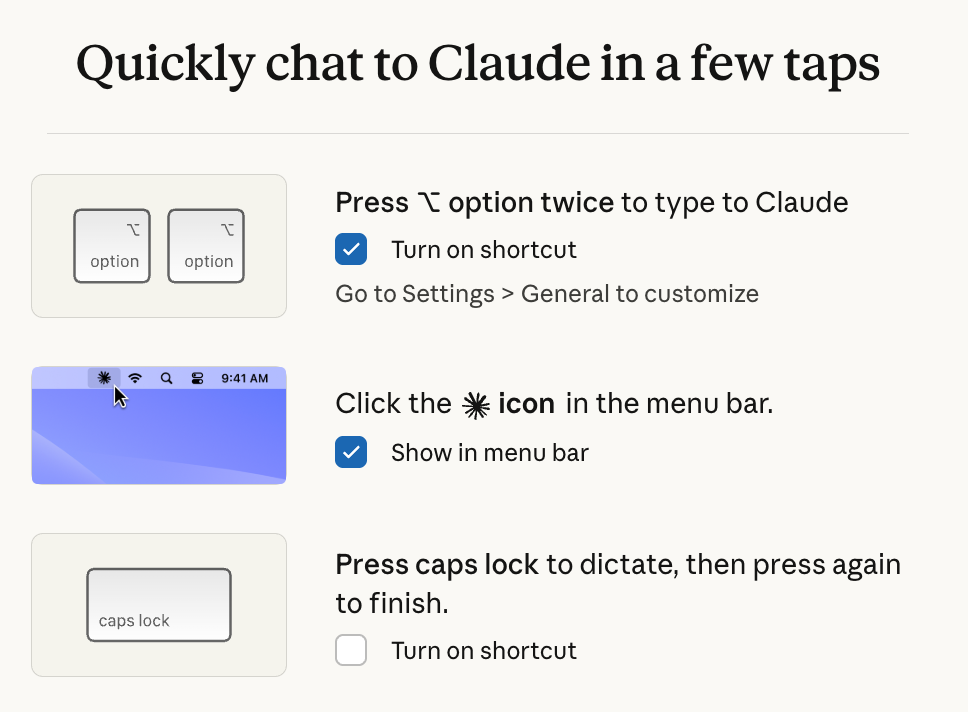
The Claude desktop app has three ways to pull it up instantly without switching windows:
- Double-tap Option — Opens a text input overlay right where you are. No need to find the Claude window or switch apps. Go to Settings > General to customize the shortcut.
- Menu bar icon — Click the ✳ icon in your Mac menu bar for quick access. Enable it in settings with "Show in menu bar."
- Caps Lock to dictate — Press Caps Lock to start talking, press again to stop. Claude transcribes and responds. Faster than typing for quick questions.
The dictation shortcut is built into the desktop app itself — no third-party tool needed. For longer, more complex prompts where you need system-wide dictation (not just inside Claude), see Wispr Flow below.
Prompting Faster
Long prompts take forever to type. Wispr Flow lets you dictate prompts at 120 words per minute instead of typing at 40. Especially useful for detailed instructions, context dumps, or when you're iterating quickly with Claude.
See Also
- Your First Day With Claude Code — Install Claude Code from scratch with zero coding experience
- Andrew Ansley on Claude for Marketers — Claude Projects, Claude Code, and why philosophy makes you a better prompter
- ChatGPT — OpenAI's alternative
- Wispr Flow — Dictate prompts instead of typing
- OpenAI — API access for automation
See Also
We are an independent affiliate of Claude Code and may earn a commission if you sign up through links on this page. We are not employees or representatives of Claude Code.
Some links in this article are affiliate links. If you purchase through them, we may earn a commission at no extra cost to you. This helps support our content.
This article blends original content, AI-assisted drafting, and human oversight. How I write.
Stay Updated
Get notified when new content is published.
No spam. Unsubscribe anytime.